CreateJS Beginner's Guide
Categories: Study

Photographed at Sabah Mangrove Fireflies
TL;DR
Recently I’ve been exploring front-end interactive game tech, and built a small game with CreateJS. This post serves as a personal reference and a quick-start guide for anyone looking to build mini web games with CreateJS.
Notes are based on version 1.0. Given some discrepancies with older online tutorials, I strongly recommend sticking to the modern release. Here is a high-level overview:
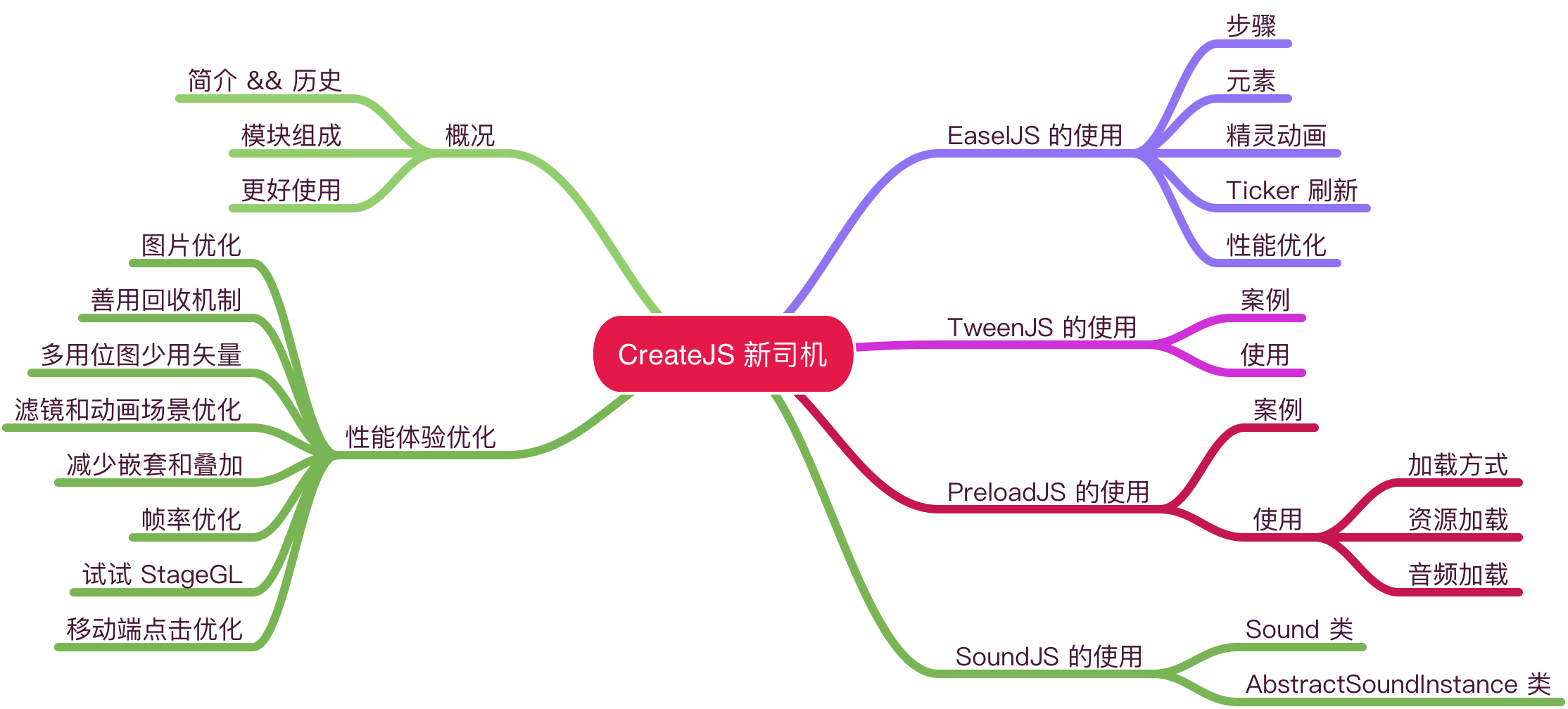
Overview
Introduction
CreateJS is a suite of modular libraries and tools based on HTML5. Based on these libraries, games, animations and interactive applications based on HTML5 can be developed very quickly.
History can be traced back to 7 years ago when flash use slowly decreased. gskinner developed it as a “next generation” rich interactive tool library. A project officially funded by Adobe, Microsoft, and Firefox. The API is very similar to Flash in many places, and can be directly exported to Canvas for use in Web via Adobe Animate CC (replacing Flash).
Version 1.0 was finally released in 2018, and version 2.0 is officially under development. I believe there will be a more modern Createjs presented to developers soon.
Module Composition
The 4 modules provided by CreateJS can help handle common operations in game development:
- EaselJS: Used for drawing bitmaps, graphics, Sprites, text, and also includes Ticker timer
- TweenJS: Used to create tween animation effects
- PreloadJS: Preloading and management of game resources, including images, audio, json and other resources
- SoundJS: Play and process audio
Better Usage
Currently, the official version of createjs does not support usage via npm, which causes the need to manually introduce a <script> tag in html in ES6 development, which is inconvenient for modular development.
createjs-npm adds a layer of glue to the official library through imports-loader and exports-loader, allowing everyone to use it like using npm packages. Specifically:
// After installation, usage is consistent with official createjs 1.0
npm install createjs-npm -S

// Import all modules
import createjs from 'createjs-npm';

// Only import a single module (xx can be easel, preload, tween, sound)
import createjs from 'createjs-npm/lib/xx';
Usage of EaselJS
EaselJS assumes the drawing ability in Createjs. For example, if you want to draw pictures, graphics, frame animations, text, you can use its API to implement.
Steps
For example, if you need to draw a red circle, the required steps are Create Stage -> Create Object -> Set Object Properties -> Add Object to Stage -> Update Stage to Render Next Frame:
  //Create a stage, get a reference canvas
  const stage = new createjs.Stage("myCanvas");
  //Create a shape display object
  const circle = new createjs.Shape();
  circle.graphics.beginFill("red").drawCircle(0, 0, 40);
  //Set position of shape instance
  circle.x = circle.y = 50;
  //Add shape instance to stage display list
  stage.addChild(circle);
  //Update stage will render next frame
  stage.update();
The effect of the above code is:
See the Pen Demo by Tw93 (@tw93) on CodePen.
Graphics Class
In the demo above, we created a Shape, which wraps a canvas element. To actually draw onto this canvas, you interact with the Graphics class.
Graphics provides rich styling and path-drawing methods. Every drawing call returns the Graphics instance, making method chaining super clean. See the EaselJS API Documentation for full details.
EaselJS Elements
EaselJS handles images, shapes, sprite animations, and text — represented by Bitmap, Shape, Sprite, and Text:
// Bitmap for images
const bitmap = new createjs.Bitmap("imagePath.jpg");

// Shape + Graphics for vector drawing
const shape = new createjs.Shape();
shape.graphics.beginFill("#ff0000").drawRect(0, 0, 100, 100);

// Sprite for frame-based animations (detailed below)
const instance = new createjs.Sprite(spriteSheet);
instance.gotoAndStop("frameName");

// Text for typography
const text = new createjs.Text("How are you", "20px Arial", "#000000");
Sprite Animation
This is one of the most delightful features when you first try CreateJS — straightforward to wire up and visually satisfying. For example, here’s an animated walking gentleman:
See the Pen Sprite by Tw93 (@tw93) on CodePen.
Tip: You can use TexturePacker to generate sprite sheets. It even has an option to export directly for EaselJS — just drop the output directly into SpriteSheet.
You can easily define multiple animation sequences to make characters more dynamic. Check out the SpriteSheet Class docs for deeper options.
Ticker Refresh
Main Function
The movement of the characters mentioned above relies on Ticker to refresh the stage in real time. At the same time, addEventListener can be used to listen to the refresh of tick and “do something” inside.
createjs.Ticker.framerate = 60;
createjs.Ticker.timingMode = createjs.Ticker.RAF_SYNCHED;
sprite.addEventListener("tick", ()=>{console.log("doing something"});
Focus Points
createjs.Ticker.framerate indicates Ticker frame rate. Ideally it is 60FPS. Here it can be set to 60 during game experience optimization.
createjs.Ticker.timingMode indicates Ticker’s rendering mode (setTimeout, requestAnimationFrame). Can choose like this:
- TIMEOUT: Default mode. This mode updates the next time through setTimeout. Although it provides a predictable and flexible frame rate, it is much worse than requestAnimationFrame in performance experience. Not recommended.
- RAF: Simply use RAF. Will ignore frame rate equivalent values set by framerate. Frequency depends on the running environment and browser performance at that time.
- RAF_SYNCHED: It will try to coordinate RAF and the set framerate frequency. Equivalent to combining the advantages of setTimeout and RAF. That is, here you can set framerate=60, optimize to let CreateJS help handle. Recommend using this mode.
Optimization Points
At the same time, it can be combined with Ticker.paused for performance optimization. For example, when we pause the game, we can prevent constant refreshing like this:
createjs.Ticker.addEventListener('tick', (e) => {
      !e.paused && stage.update();
});
createjs.Ticker.paused = true;  //Calling this anywhere will pause processing inside tick
createjs.Ticker.paused = false;  //Calling this anywhere will resume processing inside tick
In the process of performance tuning, createjs.Ticker.getMeasuredFPS() can be used to output the real-time frame rate to the screen. When this value is very close to the set framerate, it indicates good performance.
Usage of TweenJS
From the above, we can see that EaselJS can actually handle many things in CreateJS development. The other three items can be used as auxiliary tools to make development more convenient.
TweenJS acts as the ability of “movement” here. At the same time, it can also be used independently. It supports numeric object properties and CSS style properties. It is a very powerful tween animation function library.
Case
For example, the following classic animation example:
See the Pen TweenJS by Tw93 (@tw93) on CodePen.
Usage
Method chaining makes orchestrating sequences straightforward: grab the target element, specify delays, trigger chained animations, and handle completion callbacks.
For everyday use cases, the basics cover almost everything. For advanced requirements, consult the TweenJS Documentation:
createjs.Ease: Animation easing curves, including linear, bounceIn, circInOut, getBackIn, quadInOut, etc.ColorPlugin: Color tweening plugin supporting standard CSS color values.CSSPlugin: Requires registration viacreatejs.CSSPlugin.install();, animates standard CSS styles.RotationPlugin: Handles rotation transforms smoothly viaRotationPlugin.install(props);.MotionGuidePlugin: Guides elements along curved motion paths defined by vectors (createjs.MotionGuidePlugin.install(createjs.Tween);).Timeline: Synchronizes and controls multiple animation groups together.
## Usage of PreloadJS
PreloadJS coordinates asset loading so games can preload textures, audio, and data before gameplay starts.
It centers around the LoadQueue class. In game development, the standard use case is preloading sprites and background tracks.
### Case
Below, assets load with progress tracking while the background music begins playback:
See the Pen PreloadJS by Tw93 (@tw93) on CodePen.
### Usage
#### Loading Method
const queue = new createjs.LoadQueue(false);
The boolean argument toggles between XHR (true) and tag-based loading (false). While true is the default, XHR often runs into CORS issues when loading from CDNs, so tag loading (false) is generally safer and more reliable.
#### Resource Loading and Usage
Using loadManifest, you can queue up all game assets at once — images, audio, JSON, and SVG files. Use id as the lookup key and retrieve assets with queue.getResult(id).
Listen to lifecycle events like progress, fileload, complete, and error. Combining progress and complete makes building a loading bar trivial.
#### Loading Music
To load audio, register the Sound plugin via queue.installPlugin(createjs.Sound); and specify fallback formats like createjs.Sound.alternateExtensions = ["mp3"];.
There’s a small catch here: older browsers might fail to play audio. You can use HTMLAudioPlugin to fix this: createjs.Sound.registerPlugins([createjs.HTMLAudioPlugin]);.
Start playback with createjs.Sound.play(id);.
## Usage of SoundJS
For casual web games, upbeat background music brings the experience to life. SoundJS handles audio playback with solid cross-browser compatibility.
### Sound Class
Audio management mainly uses Sound class, with following functions:
- Sound.registerSound: Register audio to be played. registerSounds supports multiple audios. Need to register in advance before audio playback (loading here can actually also use preload),
- Sound.registerPlugins: Register audio playback plugins. Generally used for incompatible low browser scenarios. Can register to be compatible with WebAudioPlugin or HTMLAudioPlugin
- Sound.play: Play audio, generally
createjs.Sound.play(id)
AbstractSoundInstance Playback Instance Class
When we call Sound.play API, we actually create an AbstractSoundInstance class. After creation, we can use it to directly control audio playback or other operations, and listen to its playback status:
const myInstance = createjs.Sound.play("myAssetPath/mySrcFile.mp3");

// Property control, select needed properties to set in practice
// Properties can also be added to play second parameter as object
myInstance.volume = 0.5;
myInstance.paused = false; // Control music pause or not
myInstance.loop = true;  // Loop playback
myInstance.duration = 30;  // Playback duration

// Listen to status, commonly used for error, re-play
myInstance.on("complete", handleComplete);
myInstance.on("loop", handleLoop);
myInstance.on("failed", handleFailed);
Performance Experience Optimization
Image Optimization
- Image size affects performance more than normal H5. Try to use appropriate size and images compressed by TinyPNG
- For sprite sheets or many small image scenarios, use TexturePacker tool to synthesize them into one sprite sheet
- For frame animation scenarios, use gka tool to compress images and directly generate animation files
Make Good Use of Recycling Mechanism
- Destroy timely for those outside the screen or not in the stage
- Use cache for complex objects to increase performance. Try not to use for simple ones, will have counter effect
- SpriteSheetBuilder way can replace cache, and effect is better
Use More Bitmaps Less Vectors
- Vector operations in CreateJS affect performance relatively. Strangely Text shape are counted as vectors. Suggest directly converting text and vector images to bitmaps through tools here
- If some projects must use vectors, filters, overlay modes, or contain very many sub-components, can optimize by using SpriteSheetBuilder for bitmap rendering
- Mask in animateCC is equivalent to framing the whole animation sequence, vectorizing, so try to use less. If really have to use, operation method is same as handling vectors above
Filter and Animation Scene Optimization
- Do not use filter effects such as (shadow filter and glow filter) to do animation, because this will consume performance very much, performance uncontrollable on mobile end
- Can use frame-by-frame images to replace related filter effects to achieve animation effects
Reduce Nesting and Overlapping
- When doing animation or other scenarios, try not to have too much container nesting, try to flatten the hierarchy (a bit like writing Weex, paying attention to flat and thin)
- Some overlapping scenarios can be replaced directly with images
Frame Rate Optimization
- Cancel frame rate listening timely if not used, such as tick
- Use
createjs.Ticker.timingMode = createjs.Ticker.RAF_SYNCHED - Set
createjs.Ticker.framerateslightly higher than expected - Through
createjs.Ticker.getMeasuredFPS()output real-time FPS to screen, perform optimization
Boost Performance with StageGL
- StageGL is not included in the default minified build; import it separately.
- Usage is identical to regular Stage, but unlocks hardware-accelerated WebGL rendering for dramatic performance gains. See Getting Started with StageGL for details.
 // Conventional 2D scene
  const stage = new createjs.Stage("canvasId");

  // Use WebGl
  const stage = new createjs.StageGL("canvasId");
Mobile End Click Event Optimization
When initializing our game, generally need to bind click events for it, but for mobile end adding this sentence will have much better effect
var stage = new createjs.Stage("canvasId");
createjs.Touch.enable(stage);
End
CreateJS features should be more than these. More need to be used in actual projects. Many interesting usages can be discovered through various game scenarios. If you also have insights on H5 interactive mini game development, welcome to communicate together.