You Don't Know AI Coding: A Non-Engineer's Guide to Getting Started, Scenarios, and Practice
Categories: Share

TL;DR
Last month I ran an internal session walking product and business folks through how to get started with AI Coding. That deck eventually grew into this post. A lot of people get stuck at the very first step, the command line. Staring at a terminal that’s just characters on a screen, they assume it’s a programmer-only tool and they’ll never figure it out. The bar is lower than it looks. If you can use a chatbot like ChatGPT, you can get going on Claude Code with a bit of time. The rest is just slowly getting comfortable handing the execution over to it.
Once you get the hang of it, it starts to feel like an all-purpose assistant: pulling backend data, writing little tools to fix your specific problems, stitching scattered docs into briefs, prototyping, cleaning up sales reports. Whether you’ve written code before isn’t the deciding factor. The moment you start putting project context into CLAUDE.md, writing requirements precisely, and packaging repeated actions into Skills, you’ve effectively crossed the line. This piece is mainly to bring non-technical folks along to the tool I personally love most: Claude Code.
The first hurdle is the command line
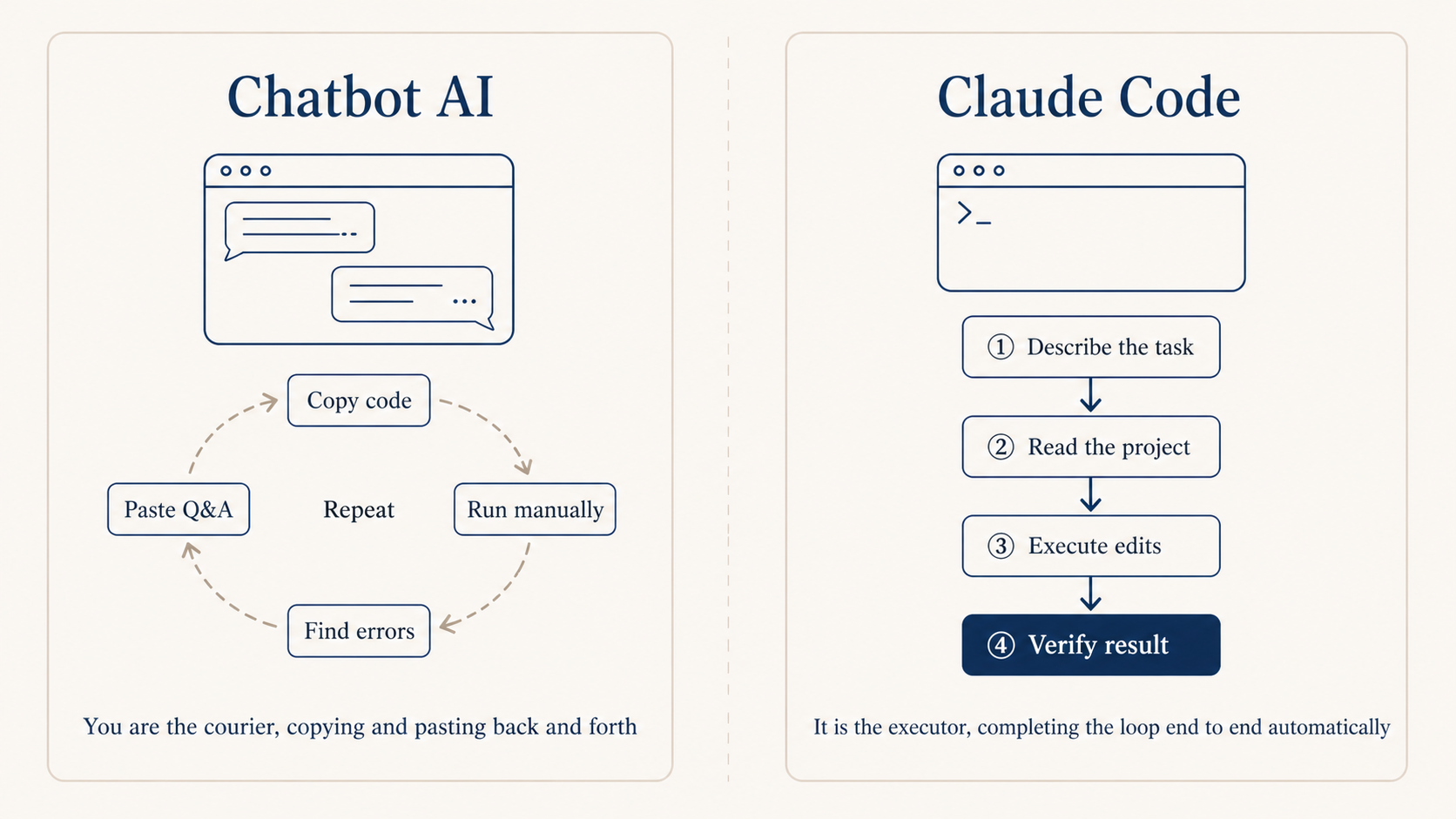
If you don’t write code, you’re used to chatbot AI like ChatGPT, and the first install of Claude Code feels a bit off. The old loop was a back-and-forth shuttle: you describe what you want, it spits out code, you copy-paste it somewhere else to try. With Claude Code that shuttle step is gone, it runs directly in the terminal.
If you’ve never used a terminal, try Kaku, which I built specifically for AI Coding. Install and go, no fiddling with colors or fonts. Light/dark mode follows the system, split panes with Cmd + D, file manager with Cmd + Shift + Y. The most beginner-friendly part is the built-in AI assist: when a command fails it auto-suggests fixes, and if you can’t remember a command, prefix it with # and type in plain English.
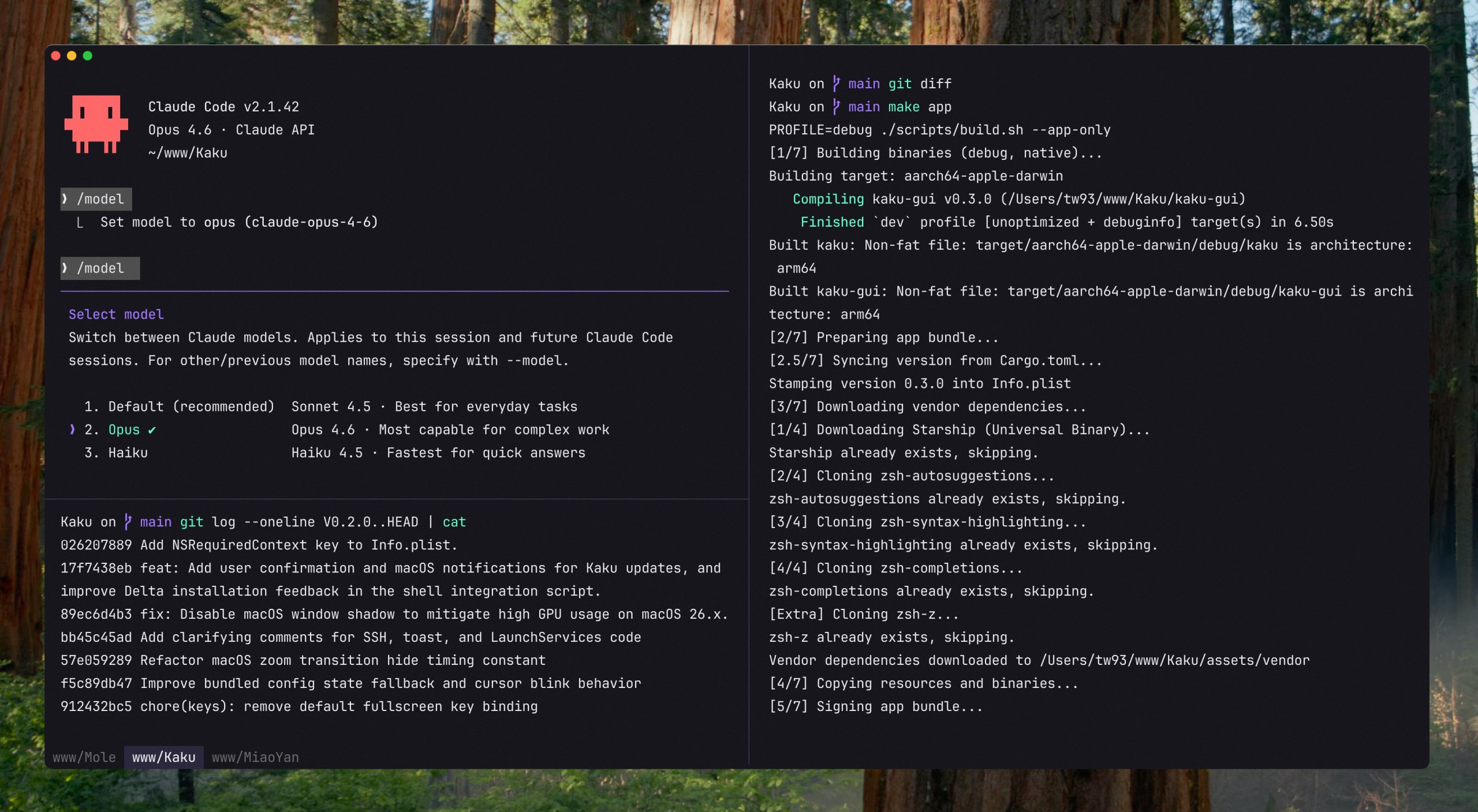
Installing Claude Code is one command, see the official docs, then cd into your project folder and type claude to start coding.
curl -fsSL https://claude.ai/install.sh | bash
A bit of technical literacy goes a long way
If you don’t write code but want to actually use Claude Code well, knowing how to describe what you want isn’t enough. A bit of conceptual ground makes debugging way easier later.
What common frameworks do. Knowing roughly what React, Vue, and Next.js solve means you won’t be lost when Claude Code writes something using them.
Basics of common software: terminal commands, Git, VS Code, Chrome DevTools. When something errors out, you can locate it alongside Claude instead of just waiting.
A few core programming ideas: what a function is for, what variables and state are, why we split things into multiple files. Understanding these makes your requirements more precise.
Reading code and reading errors pays off earlier than learning to write code. When it changes a chunk, you can glance at it and roughly tell what’s happening, much faster than asking it to explain. When errors come up, don’t panic, just paste the whole thing back and ask “what does this mean and how do I fix it.” Nine times out of ten it’ll point you to the exact line.
You don’t need to learn enough to write code yourself. Just knowing what these things look like is enough. Spend a couple of evenings on the freeCodeCamp or MDN intro, or pick a free intro course like Crash Course Computer Science or Harvard CS50, and collaboration with Claude Code will feel noticeably different.
Three books I’d recommend for non-engineers: INSPIRED for product judgment, Linux and the Unix Philosophy for engineering philosophy, and 《左耳听风》 (in Chinese) for the engineering perspective of Chen Hao, whom I miss. These can make technical conversations with AI easier to follow.
Account and subscription
Account: sign up at claude.ai with a Google or email account, the most standard flow.
Subscription: three tiers. Free is $0 and only gets you basic chat, no Claude Code. Pro is $20/month, unlocks Claude Code, and is the right entry point for most people. Max comes in $100 and $200 tiers, giving 5x and 20x usage respectively, suited for heavy day-to-day code work.
Start with Pro. Upgrade to Max if quotas feel tight. Subscription follows the account, so an iOS purchase shows up on Android and web too.
What kind of tasks Claude Code is good at
I’ve tried a fair number of AI Coding tools, including Cursor and Windsurf, and I use Codex sometimes. Claude Code is still my main tool.
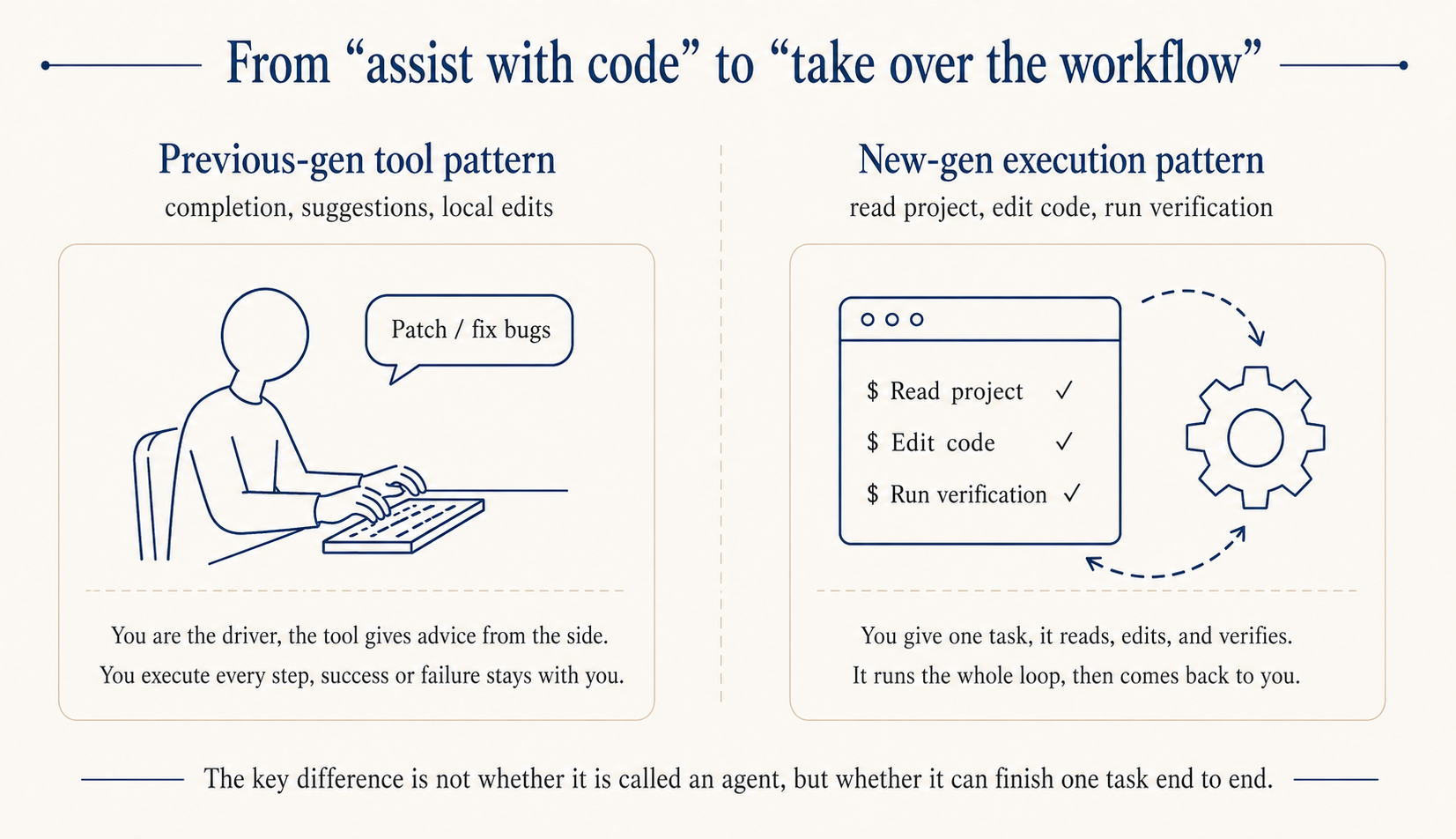
What sets it apart is the underlying model is already strong, and the Claude Code implementation pushes the harness pattern to the limit, looking at the whole project: it scans the CLAUDE.md and directory structure first to get the context, then edits across files, runs commands, reads errors, edits again, all on its own. On top of that it lives in the terminal, so git, tests, scripts, all the tools you already use, it can call directly without any copy-paste round-trip.
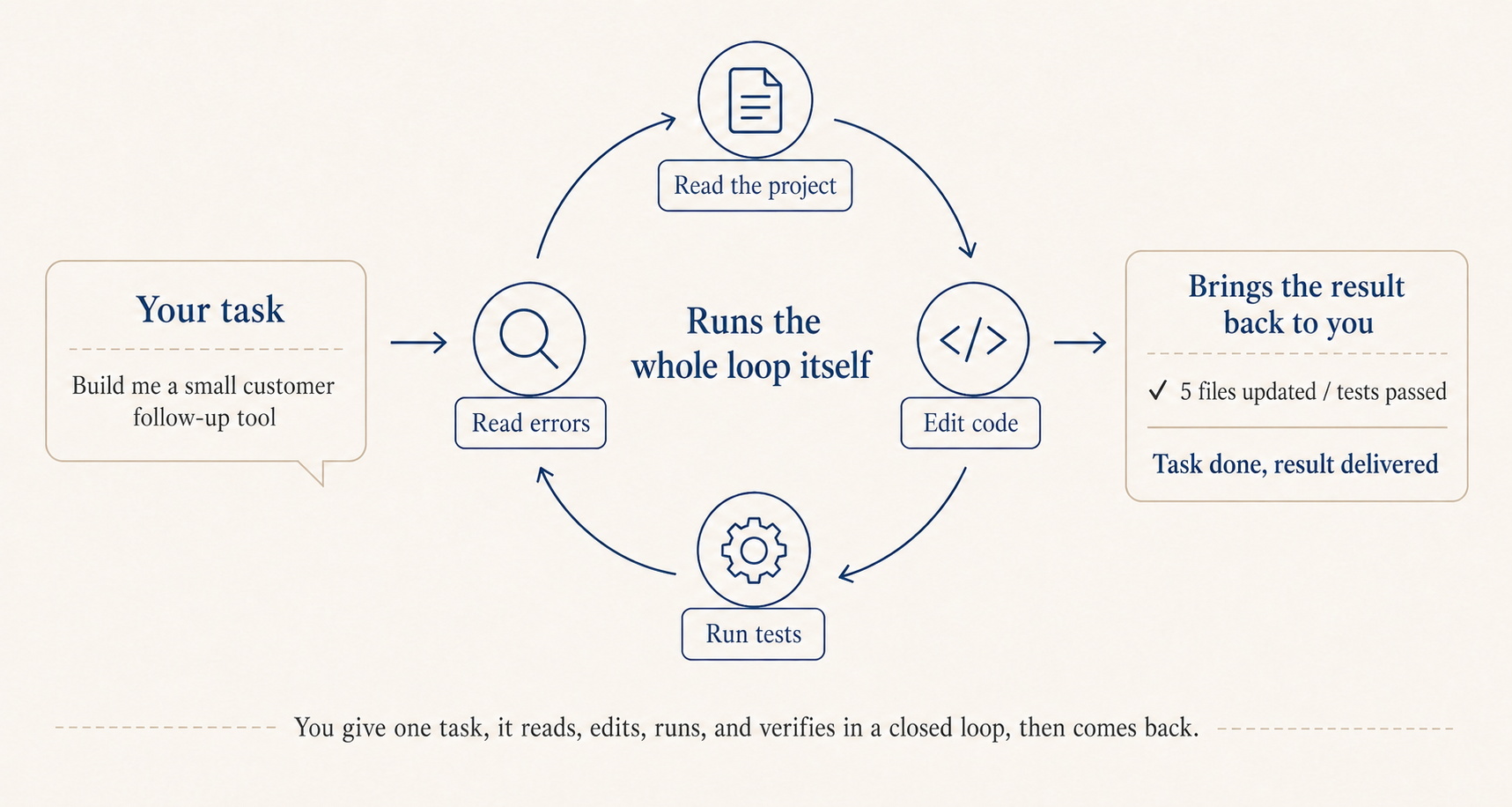
It’s effectively a general-purpose Agent. The Code in the name just reflects its original framing toward writing code. Anthropic has shared that internally many non-engineering teams, sales, risk, finance, are using it to handle CRM data and customer email. If you really don’t want to touch the terminal, the official desktop app Cowork can read and write your Downloads and Documents folders directly, so something like turning a stack of receipt screenshots into an expense report works with one sentence.
There’s another point that I think really matters: when it comes to writing code, speed isn’t what counts, accuracy is. Ten minutes of generation followed by twenty minutes of debugging is much worse than twenty minutes of generation that’s actually verifiable on the spot.
Getting it to be accurate starts with handing it work that is itself clearly defined and easy to verify. Tasks that meet both bars are the best fit, like assigning work to a very literal but technically excellent engineer.
Concretely, a few categories: prototypes and internal tools, where you spell out the requirement and display logic and you have a working version the next day; processing CSVs and building sales reports, with grouping and calculation logic written out clearly, results in minutes; pulling clauses from contracts dozens of pages long, comparing versions, the kind of doc work it really shines at; and finally, feeding it a stack of links or PDFs and asking it to extract information from a specific angle, just spell out the format you want.
Build software just for yourself
The biggest blocker when starting to “write code” is not knowing what to build. Kevin Roose, a NYT columnist, coined a useful concept: software for one. You don’t need to build something for a million people, you can build something just for you.
He built Stash for himself to organize links, LunchBox Buddy for prepping his kid’s lunches. For you, it might be a tool that turns voice notes into meeting minutes, or a small dashboard that pings you with three things to do every morning. This is exactly the kind of thing product and business folks can actually pull off, because nobody knows your daily friction better than you.
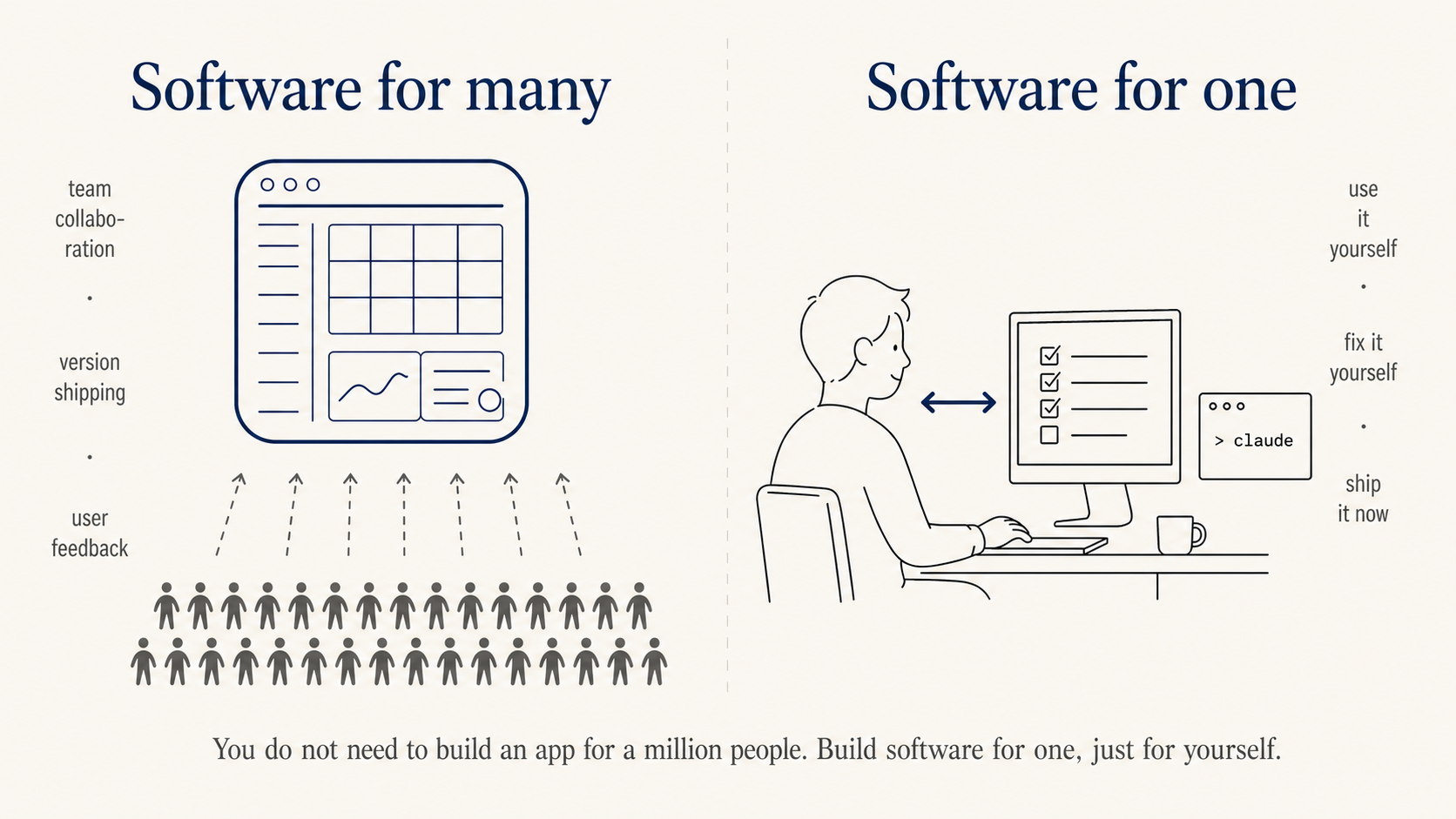
A pace from one day to three months
Don’t start by trying to build “something like Notion.” A pace that works:
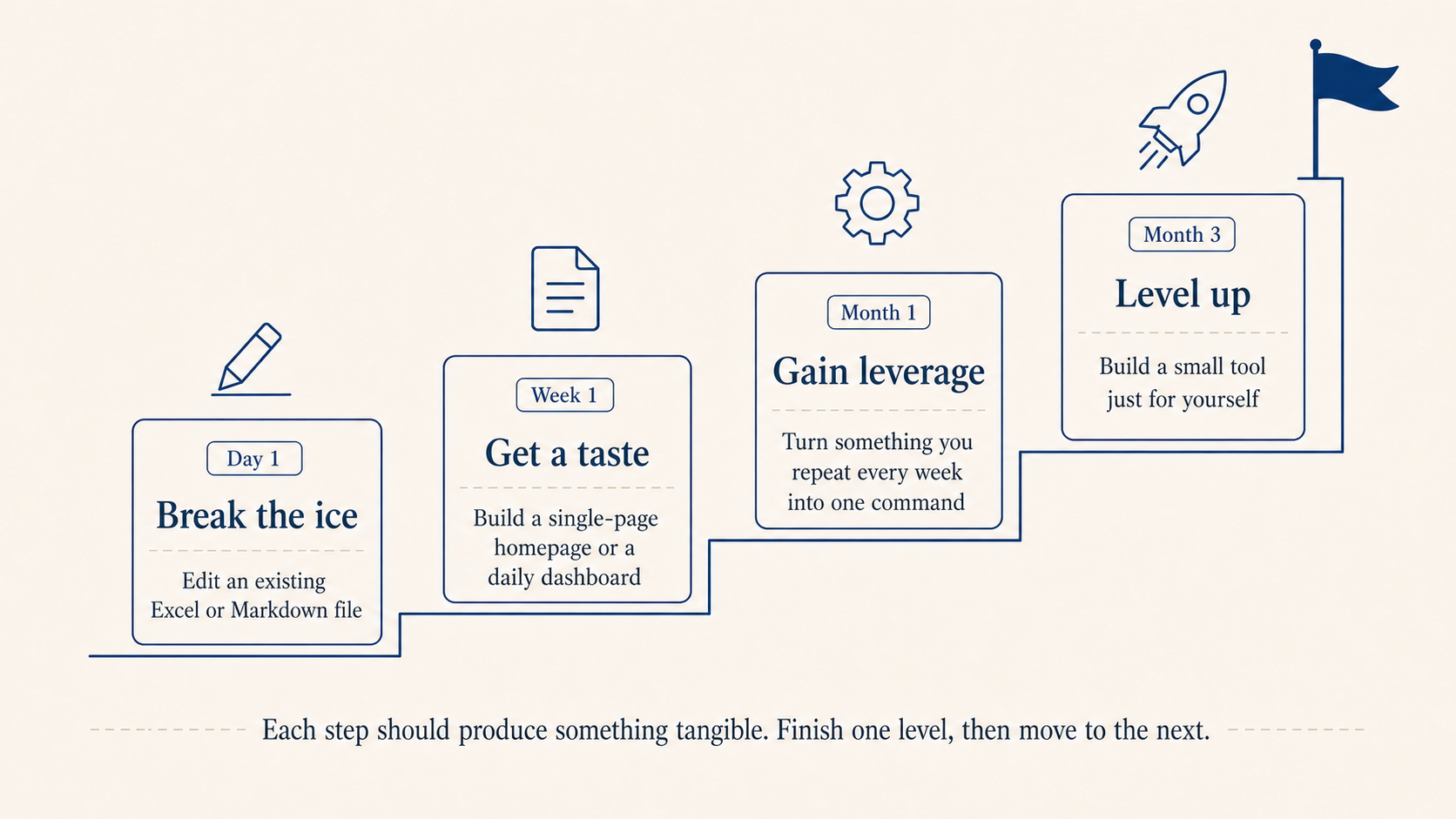
Day 1, dip in: have it edit an Excel or Markdown file you already have on hand. Week 1, taste it: build a single-page personal homepage or a daily dashboard, fifteen minutes to get it running. Month 1, ship something: pick one thing you do two or three times a week and turn it into a single command or a single page. Month 3, level up: pick a software-for-one idea and build a real tool just for you.
Use OpenCLI to turn web operations into commands
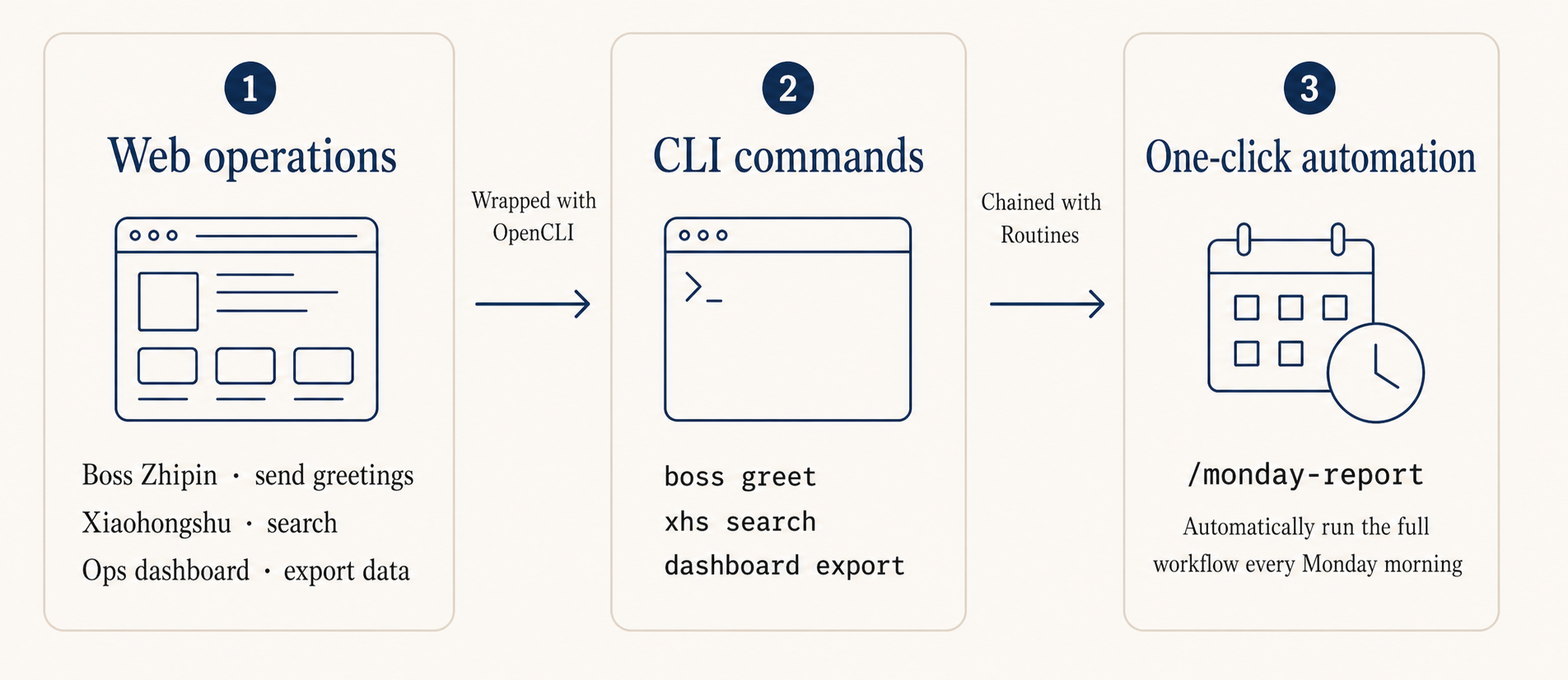
A lot of operations work happens in browsers: checking dashboards, sending messages, exporting reports. Most of that can skip the UI entirely and call the underlying API instead.
OpenCLI is built by my friend Cabbi. It ships with built-in CLI adapters for dozens of sites including Reddit, X/Twitter, YouTube, plus a set of generic browser primitives like click, type, scrape, screenshot. It turns web actions into single commands that Claude Code can invoke in one sentence.
Social listening: have Claude Code call opencli reddit to pull data, then categorize and extract trending terms. What used to take half an hour of clicking now takes one sentence.
Sentiment digest: combine the X/Twitter, Reddit, and HackerNews adapters and turn discussion of the same keyword across multiple platforms into a daily report.
Sites without an adapter: describe the flow with browser primitives, like open page, type keyword, scrape table, and Claude Code stitches it together.
Claude Code also has a feature called Routines that stores a workflow in the cloud and triggers it on a schedule, webhook, or GitHub event. I haven’t used it heavily yet, but conceptually something like “every Monday morning, run the weekly report flow” can be handed off to it. See the docs if interested.
CLAUDE.md: write the project background down clearly first
A lot of people install it and start firing questions. They end up restating the background every time, and after a while it gets old. The reason is almost always the same: no CLAUDE.md.
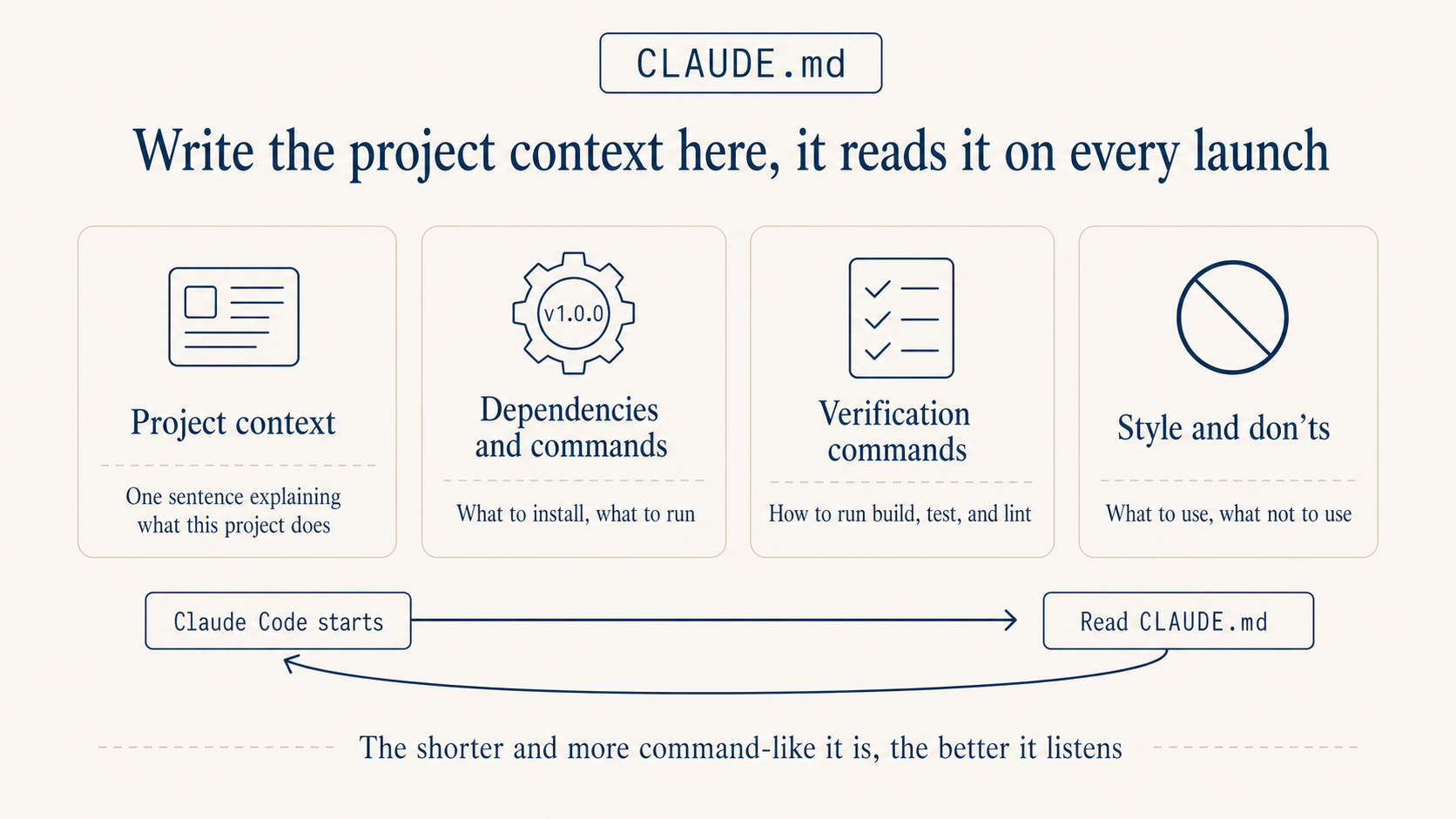
It lives at the project root, and Claude Code reads it on every startup. Treat it like the onboarding doc you’d write for a new teammate, except this one reads it from scratch every time and follows it strictly.
Three things matter most. Keep it short, ideally under 150 lines. Going longer eats into the conversation budget. Be direct, use the imperative, skip the soft “we tend to prefer” phrasing. “All comments in English” beats “the team prefers English comments” by a wide margin. Make every rule something you can judge against. “Code quality should be high” is useless. “Functions over 50 lines must be split” is something you can actually enforce.
Four rules that earn their keep, take them as-is: ask before acting, prefer simple, only touch what needs touching, verify when done. Expanded: don’t let it guess your intent, spell out the goal first; if two lines do the job, don’t write two hundred, no over-engineering; don’t refactor code you weren’t asked to touch; build and tests pass before calling it done, otherwise don’t.
A template you can adapt by changing the project background:
# Project Background
A customer dashboard for the operations team. Stack: Node.js + Next.js,
React on the front end, PostgreSQL database, deployed on Vercel.
PM is Alice, designer is Bob, backend is me.

# Working Rules
- All comments in English, variables and functions in English.
- State what you intend to change before making any edits, wait for my OK.
- For new features, write the implementation, don't add tests unless I ask.
- Database table names use snake_case, e.g. user_profile.

# Don't Do
- Don't proactively refactor files I haven't mentioned.
- Don't delete any file unless I explicitly say so.
- Don't run npm install for new dependencies without confirming first.

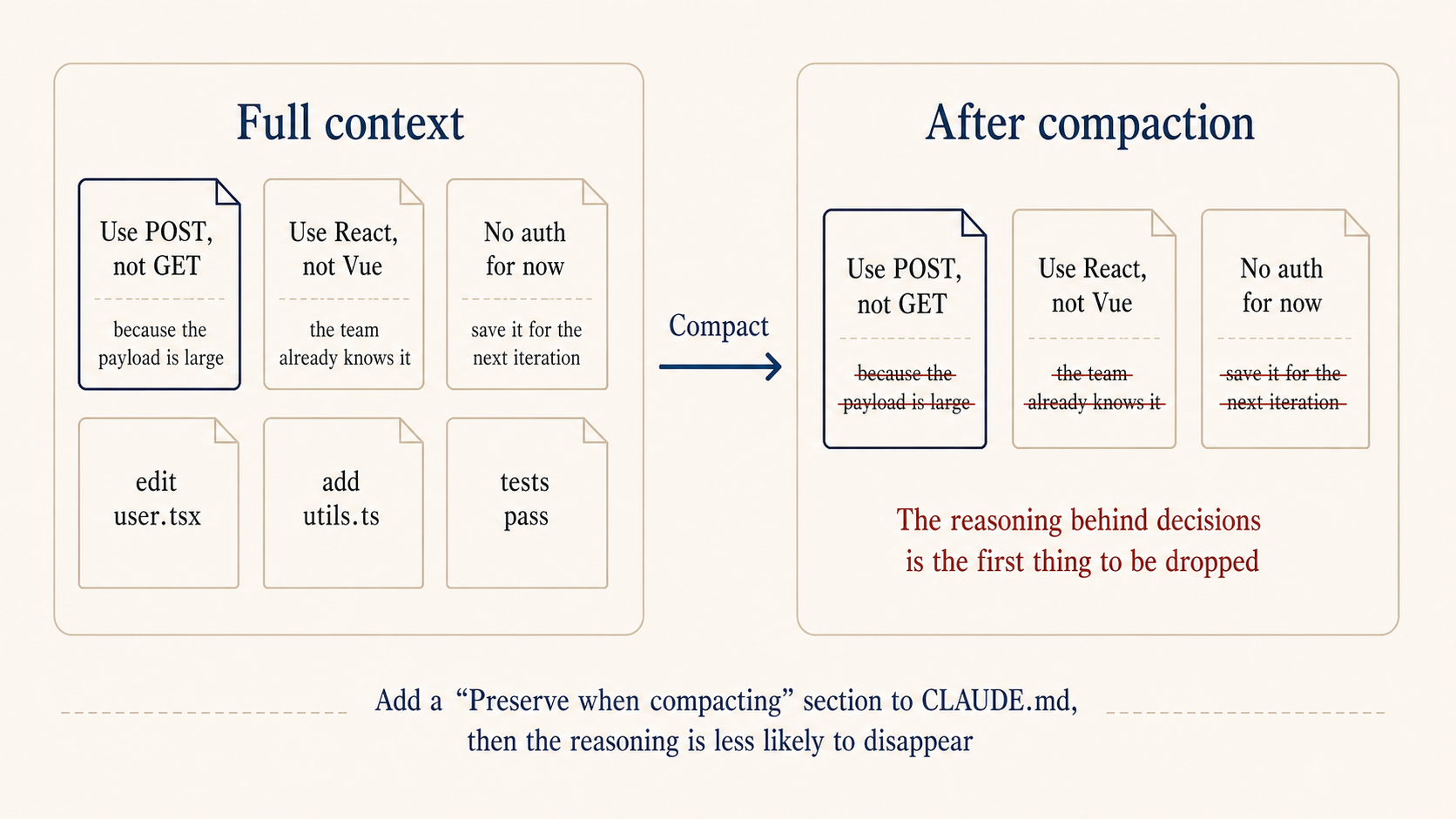
# Preserve When Compacting
When the long conversation gets auto-compacted, preserve in this priority:
1. Architecture decisions and the reasoning behind them
2. Which files were changed and what the changes were
3. Current progress state
4. TODOs that aren't done yet
That last “preserve when compacting” section looks small but it’s what makes long sessions stay coherent. Claude Code’s context auto-compacts past a threshold, and the reasoning behind decisions is usually the first thing dropped. If you previously said “use POST not GET because the payload is large,” post-compaction it might just become “use POST,” with the reasoning gone. Next time the topic comes up, it might propose something completely different and contradict itself. With this section in place, long sessions stop fighting themselves.
You don’t need to write all of this from scratch. After installing Claude Code, just say “read my project and generate a CLAUDE.md for me.” It’ll scan the code, stack, and structure and hand you a draft. You only need to tweak names and team preferences. Same goes for installing dependencies, configuring aliases, editing ~/.claude/settings.json, just tell it the effect you want and let it figure out, it’s faster than reading docs. Hand off the configuration work, save your energy for the things that actually need judgment.
The more precise the requirement, the less it diverges
Vague: build me a customer follow-up tool. Precise: build a sales follow-up tool, single-file webpage, store data locally. Left side is a list showing company name, next follow-up date, status. Right side is detail view including communication history, dates, key points. Top has three filters: status, time, keyword. Data lives in browser localStorage, no backend.
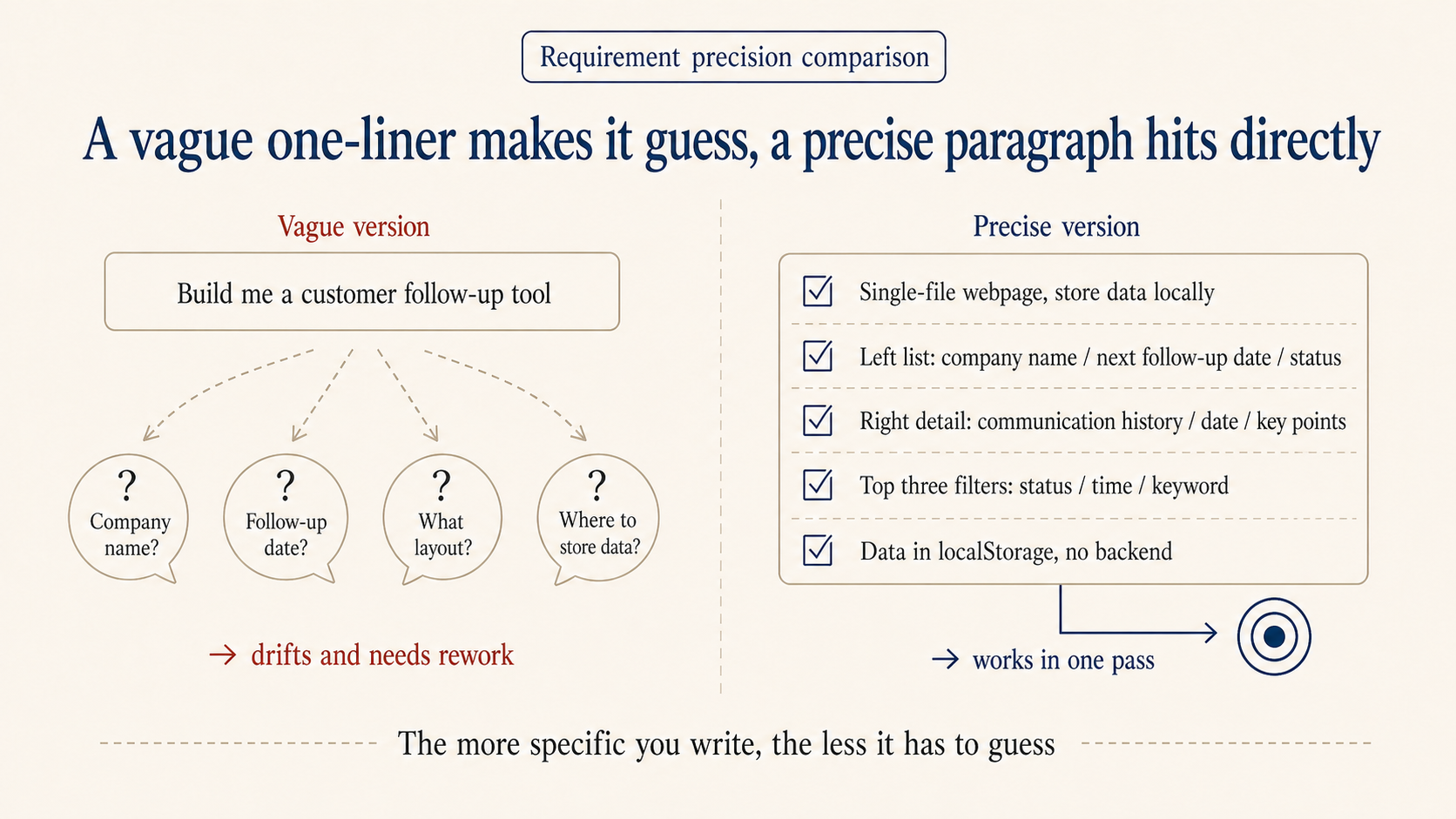
The precise version gets you a working prototype the same day. The vague one almost always needs a redo.
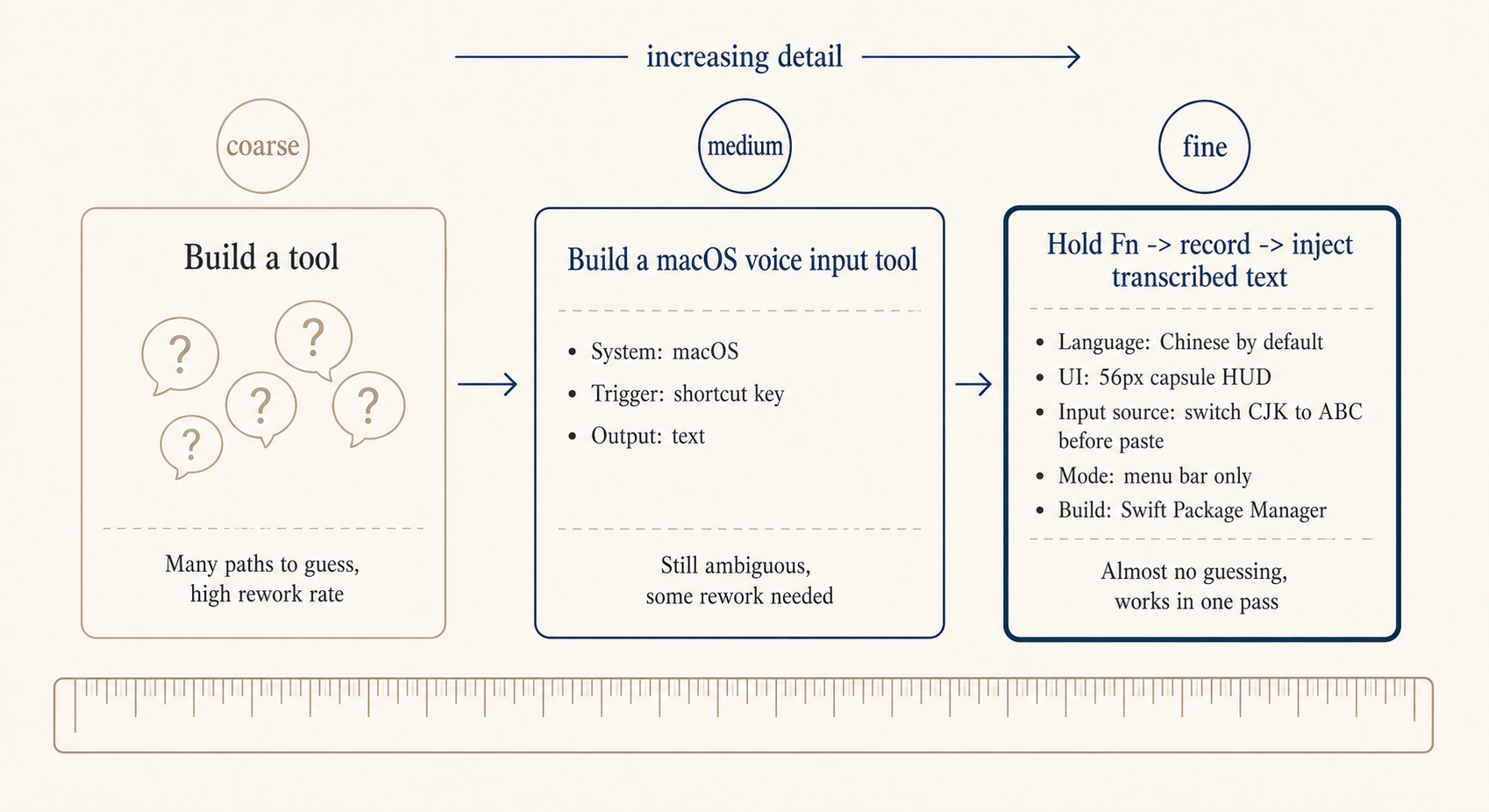
Here’s a fully precise example, requirements yetone wrote for a Claude Code build of a macOS voice input tool. You don’t need to follow the code details, the point is how specifically each requirement is broken down.
Build me a native macOS voice input tool in Swift:

1. Hold Fn to start recording, release to inject the transcribed text into
   the focused input. Prefer streaming transcription (Apple Speech Recognition
   framework). Listen for Fn globally via CGEvent tap; suppress Fn event
   propagation to avoid triggering the emoji selector.

2. Default language must be Simplified Chinese (zh-CN), working for Chinese
   out of the box. Menu bar can switch to English, Traditional Chinese,
   Japanese, Korean; persist choice to UserDefaults.

3. While recording, show a borderless capsule HUD centered at the bottom
   of the screen: no traffic lights, no titlebar. Use NSPanel
   (nonactivatingPanel) + NSVisualEffectView (.hudWindow material).
   Height 56px, corner radius 28px. Left side shows a live audio waveform
   (5 vertical bars driven by RMS level), right side shows transcribed text
   (160-560px elastic width). Spring entrance 0.35s, text width transition
   0.25s, scale exit 0.22s.

4. Inject text via clipboard + simulated Cmd+V. Before injecting, detect
   the active input source: if it's a CJK input source, temporarily switch
   to ABC, paste, then restore the original input source. Restore the
   original clipboard contents afterward.

5. Plug in an LLM to improve recognition accuracy for mixed Chinese/English.
   Use an OpenAI-compatible API (configurable Base URL, Key, Model) to refine
   transcribed text. The system prompt must be extremely conservative: only
   fix obvious speech recognition errors (e.g. "pie son" -> "Python",
   "jay son" -> "JSON"), never rewrite or polish text that looks correct,
   if it looks right, return it as-is.

6. Menu bar exposes an LLM Refinement submenu with enable/disable toggle and
   a Settings entry. Settings window has API Base URL, API Key, Model fields,
   plus Test and Save buttons. After Fn release, if LLM is enabled, the HUD
   shows Refining... until the response comes back, then injects.

7. Run as LSUIElement (menu bar icon only, no Dock icon). Build with Swift
   Package Manager, ship a Makefile (build/run/install/clean).
With this kind of description, Claude Code barely needs to guess and produces an installable macOS app directly. Every line is preventing it from guessing wrong on a specific point:
| Written | What Claude would otherwise guess |
|---|---|
| Native macOS + Swift | Might give you a Python webapp or Electron app |
| Fn key CGEvent tap, suppress propagation | Recording works but emoji selector fires, ruined UX |
| Default Simplified Chinese zh-CN | Defaults to English, terrible Chinese accuracy |
| NSPanel + .hudWindow capsule | Pops a regular window blocking the input you’re typing into |
| Switch CJK to ABC then paste | Cmd+V intercepted by IME, text injection fails |
| LLM correction “extremely conservative” | Over-polishes, changes what you actually meant |
| LSUIElement menu bar mode | Regular app, Dock icon multiplies on every launch |
| Swift Package Manager + Makefile | Some unfamiliar build system, doesn’t run locally |
You don’t need to write Swift, but you do need to write the requirement this specifically. Every line addresses a problem yetone has run into or anticipated. Each concrete detail can save another round of rework.
For business-side requirements, describing the function isn’t enough. Lead with the problem, what are we solving, who is it for, what counts as done. Don’t open with a feature list. Say we’re building a new category landing page for international ticket products, the very first sentence should be: “International ticket products don’t have a dedicated entry point today, users only find them through search, and exposure for non-popular cities is extremely low.” That sentence shapes its judgment when it later runs into questions like “how many popular cities to show” or “should the filter include ‘recently viewed’.”
Next, scope it. Claude Code is eager: ask for a list page and it’ll throw in favorites, sharing, and analytics tracking. Spell out “no auth, no sharing, no SEO, save those for the next iteration” and it stops crossing lines. Edge cases get their own list: API timeout, empty data, missing images, what’s the fallback. Don’t write these down and it either skips them or guesses a fallback you won’t like.
Acceptance criteria need numbers. “Page should be fast” is useless. “First paint under 1.5s” is judgable. “Layout should look right” is useless. “No layout breakage at 375 and 1440 widths” is verifiable.
Don’t write “TBD” or “decide later.” Claude Code will fill those in by guessing, and the guess usually isn’t what you want. Even “hardcode for this version, configurable next version” beats leaving it blank.
For complex tasks, sync first: Plan and Auto mode
There was one time I asked it to refactor the login module and it deleted a util class I needed downstream. Took me half an hour to roll back. Lesson stuck.
Since then, for anything complex I press Shift+Tab twice to flip into Plan mode first. It lays out what it intends to do, you confirm the direction, then it executes. Same as how things work at the office: you don’t tell a junior engineer to just go build the feature, you have a quick sync on the approach, agree, then they start.
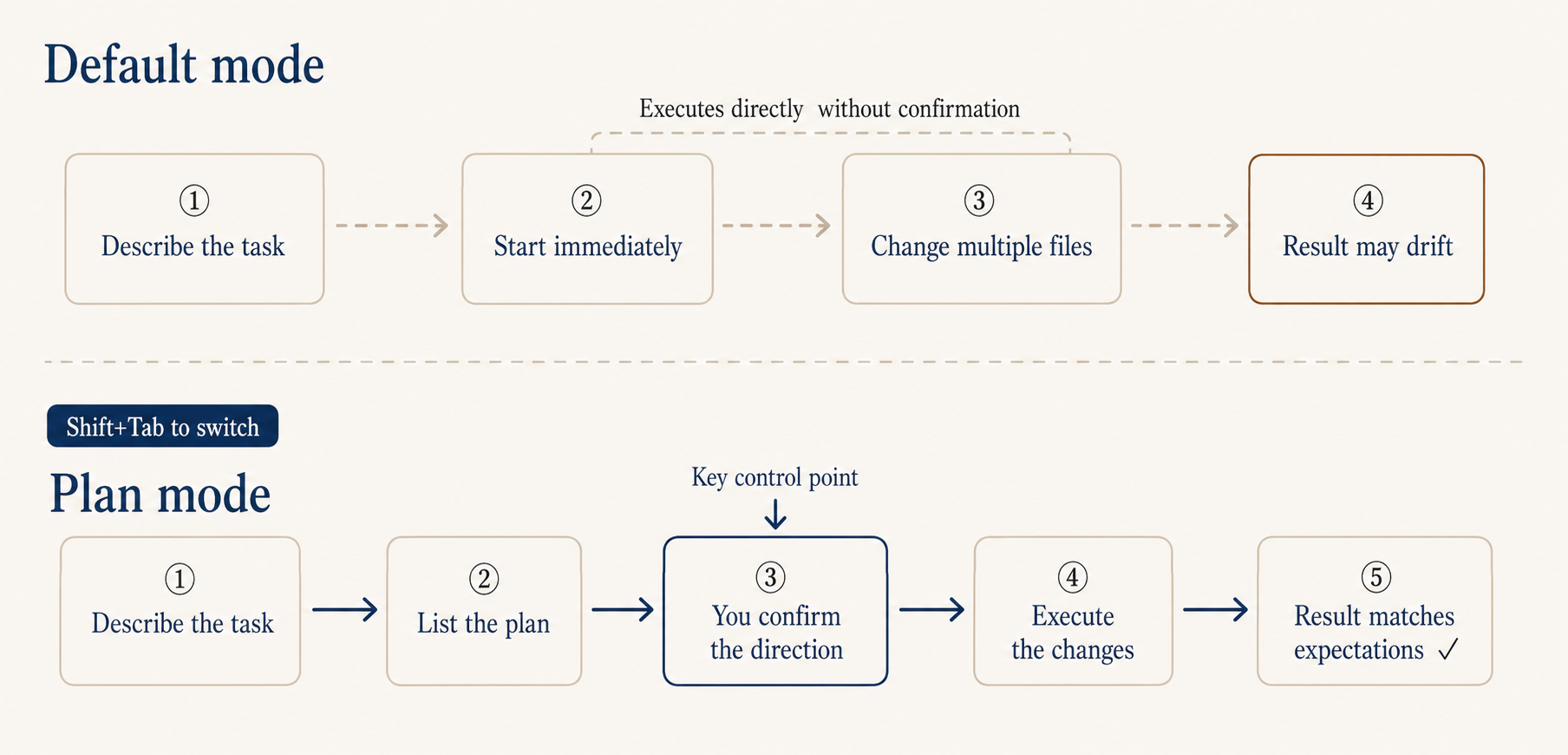
A Plan mode plan looks something like: which files to change, what changes per file, the reasoning, and the expected blast radius. Judging direction from business logic is much easier than judging the code itself. Even if you can’t read code, you can rule on “should this step happen, does this rationale hold.”
If asking on every step gets old, switch on Auto mode: cycle Shift+Tab to the auto position. It’s available on Max, Team, and Enterprise; Pro doesn’t have it yet. It judges autonomously: safe operations like reading files run directly, risky operations like database writes or file deletes still ask. Default it on early, you don’t get interrupted by trivial confirmations and it doesn’t go rogue either.
How do you know it actually got it right
It saying “done” doesn’t mean much, what counts is how you verify. AI also takes the path of least effort.
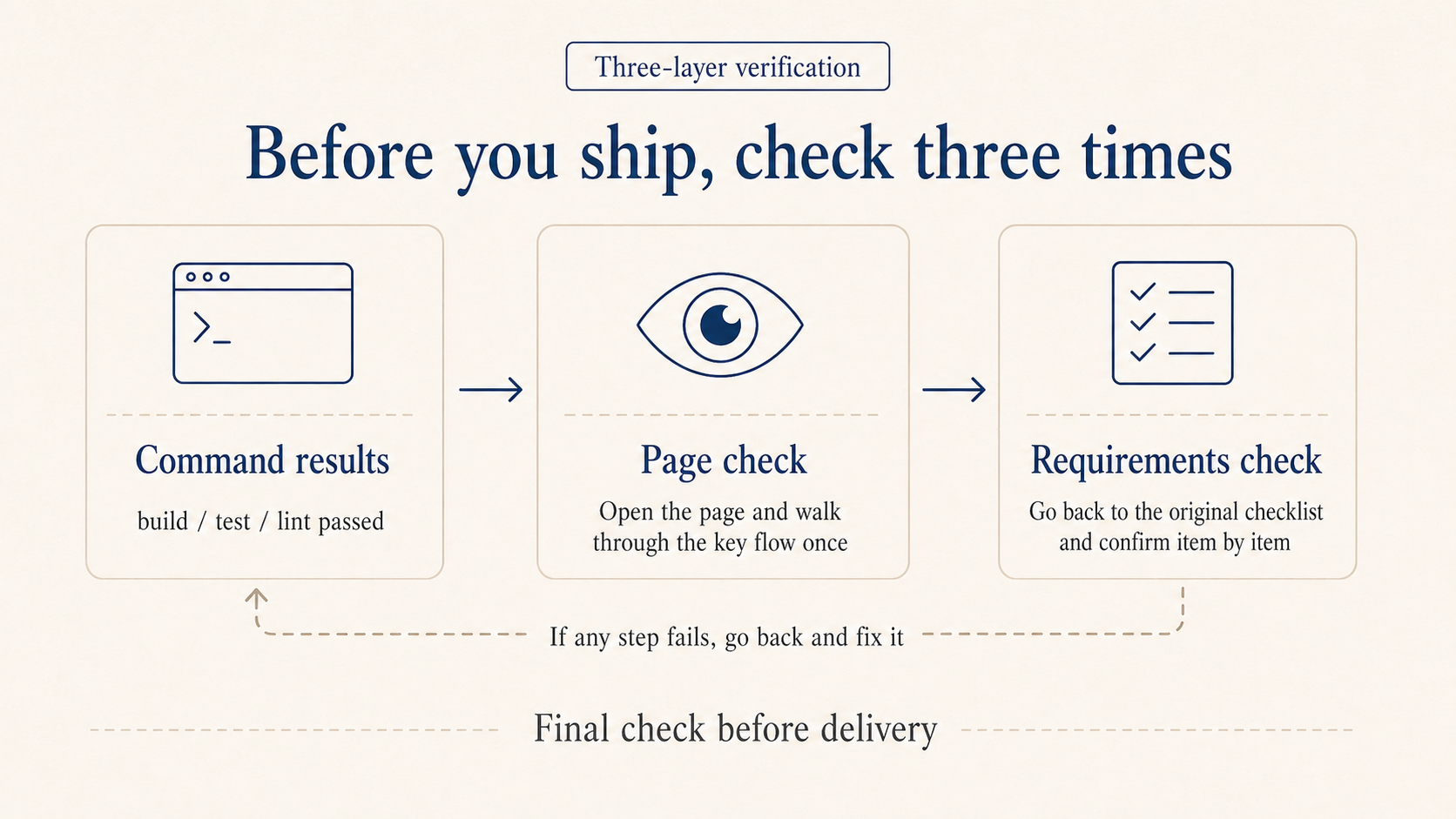
I check three things. Did the commands pass: build and test go green. Putting “after finishing, run make build && make lint” in CLAUDE.md makes it self-check. Did you actually see it: open the page, eyeball the numbers, walk the key flow. A file edit isn’t the same as the page looking the way you wanted. Did it match the list: walk the acceptance criteria one by one, anything missed isn’t done, send it back.
Recovering from a bad change
The thing non-coders fear most is the code getting tangled past recovery. Two common saves.
Git snapshot: before any big change, have it run git status to see what’s there, then commit a checkpoint once you’re satisfied. If things go bad, just say “roll back to the last checkpoint,” much safer than running checkout by hand.
Undo last step: just say “undo everything you just did,” or use /rewind to return to the previous state.
Don’t let it slide into a try-this-try-that loop
A trap that’s easy to fall into: getting stuck in a try-this-try-that loop. Four or five rounds in, what was a small problem turns into a knot. The cause is always the same: patching before the diagnosis is clear.
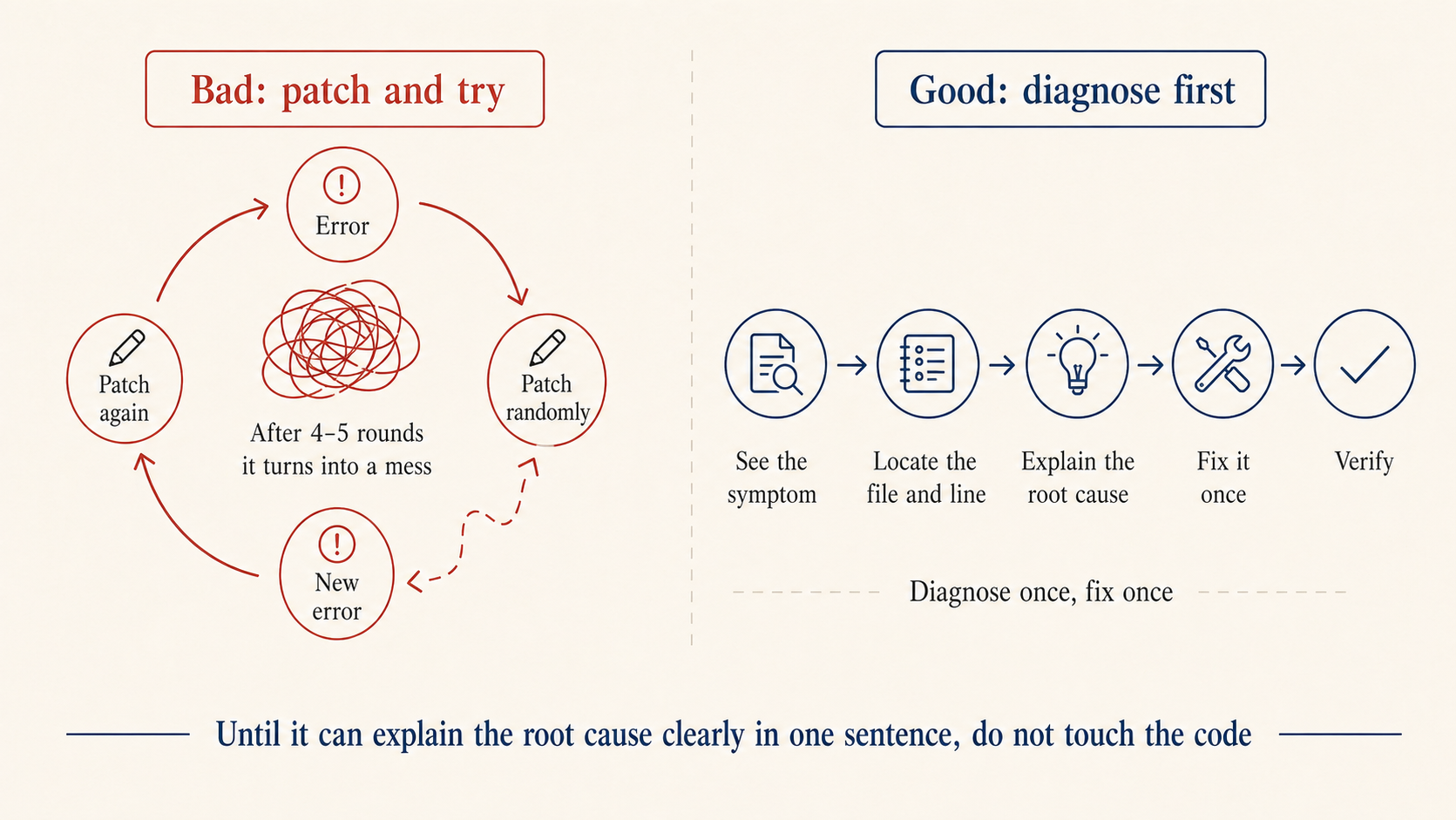
The fix in one line: don’t touch code until the root cause is named. Get it to first answer “which file, which line, why does this happen.” If the answer is fuzzy, keep digging. Only edit once the answer is clear. If it opens with “let me try changing X and see,” cut it off and ask for the root cause first.
After the warm-up: alias, model, long sessions
You don’t need this on day one. Once you’re comfortable, or once Pro starts feeling tight, come back to this section.
How I use my Max subscription
alias, I dropped one line into .zshrc so pressing c launches Claude Code without permission prompts and pushes the auto-compact threshold up to 400k. Letting compaction trigger only when the context is fully maxed gives worse results than triggering a bit earlier. You can paste this snippet into your own Claude Code and have it adapt for you:
alias c='CLAUDE_CODE_AUTO_COMPACT_WINDOW=400000 claude --dangerously-skip-permissions'
--dangerously-skip-permissions is not for beginners. It literally means “dangerously skip every permission prompt,” so Claude Code won’t ask anything. I use it because I can read what it’s doing at every step, and the constant prompts genuinely slow me down. If you’re not at that level yet, stick with Auto mode.
Use opusplan as the model. The way I’m running it now is to type /model opusplan, a hidden command (these can change between releases, defer to whatever your version supports). It uses Opus for planning and Sonnet for execution: planning gets handed to Opus, execution to Sonnet, saves both money and time overall. Want it faster, run /fast on top, that buys back roughly the tokens you saved.
A key setting: if your version supports it, when using opusplan, set showClearContextOnPlanAccept to true in ~/.claude/settings.json. Without it the Sonnet leg hits a serious cache miss and slows down noticeably. Flipping this on smooths the whole thing out.
What to do about long sessions
Claude Code’s context window is fixed. Push it long enough and early content gets pushed out.
/clear after each task: one task per session. Finish, clear, start the next. Two unrelated things in the same context make it progressively confused.
Have it write a handoff note before a long task ends: just say “write current progress to HANDOFF.md, including what’s done, what didn’t work, what’s next.” Open a fresh session next day, hand it the file, it picks right up. No reliance on the compaction algorithm.
Waza: turn good habits into muscle memory
AI can move fast on the parts of coding that are clearly defined, but what the thing is supposed to look like still needs to come from you. I’ve been working on a Skill collection called Waza, eight skills mapping to eight habits I think a good engineer should have.
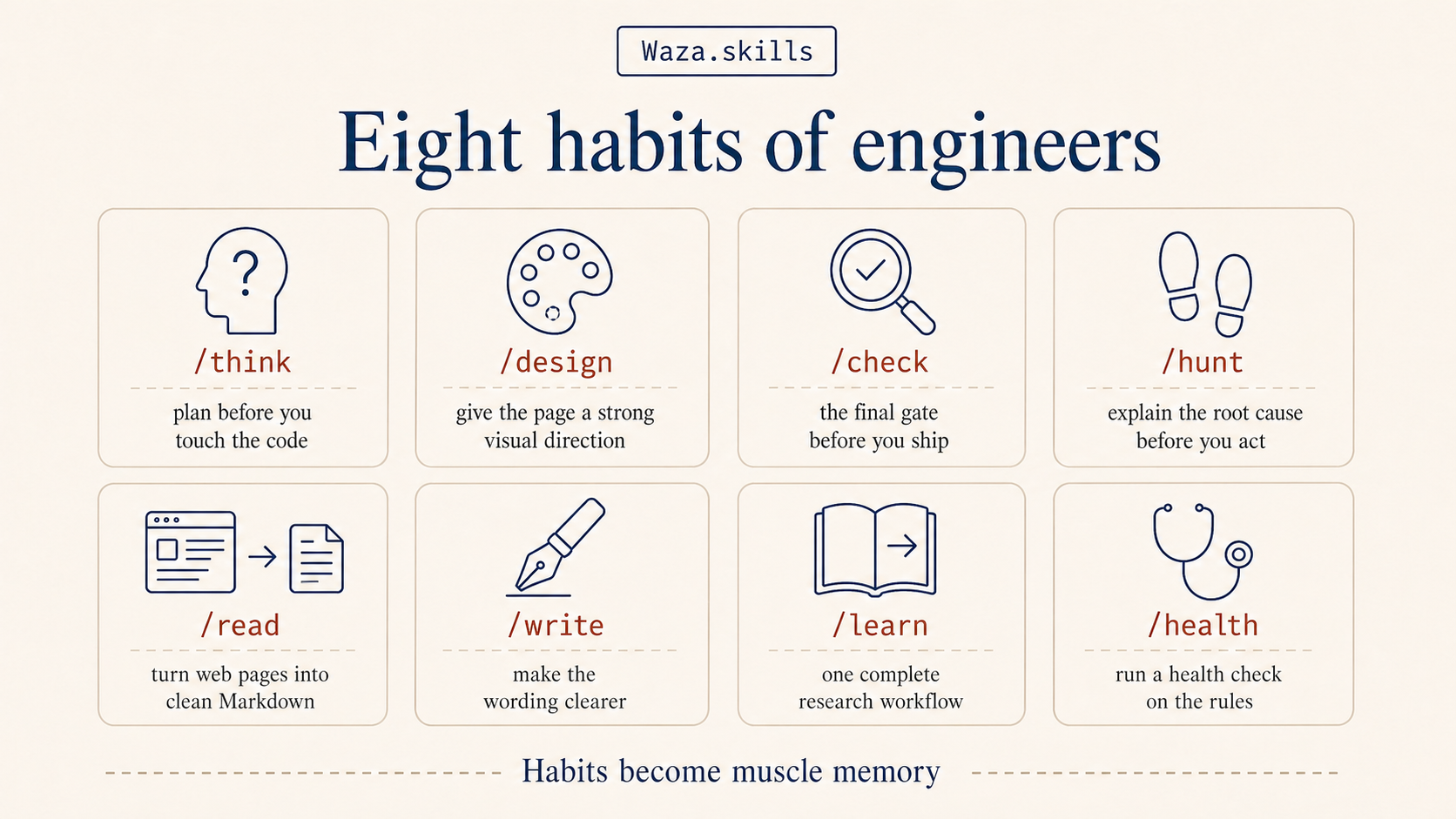
/think makes you think through the technical approach before writing any code. AI writes code fast, but moving fast in the wrong direction just gets you wrong faster. Question the problem first, get the approach right, then let it run. /design helps you design a real product page, without the purple-blue gradients and piles of emoji that make so many AI-generated pages look alike. /hunt is for debugging, with one rule: don’t touch code until the root cause is named, no try-this-try-that loop. /check is the last gate before wrapping up, walks the diff, fixes what can be auto-fixed, and gathers the rest into questions for you.
The other four are everyday: /read turns any webpage or PDF into clean Markdown for your workflow, /write makes your prose clearer, /learn is a research workflow from gathering material to producing an article, /health runs a checkup on your CLAUDE.md and ruleset, useful when Claude feels off.
Install: npx skills add tw93/Waza -g. The one I’d most recommend for product, business, and ops folks to try first is /design. Drop a screenshot in with /design, and instead of jumping in to edit, it asks you who it’s for, what mood you want, what style you can’t stand, any micro-interactions you want users to remember. Then it goes. Results are typically more stable than just saying “make this look better.”
You can write a Skill yourself
A Skill is just a folder under .claude/skills/ with a SKILL.md describing when to use it and what to do. Claude Code only reads the frontmatter (the trigger description, around 100 chars) at startup, and only loads the full content when the Skill is actually called. So having dozens of Skills installed doesn’t slow startup.
The three types I use most:
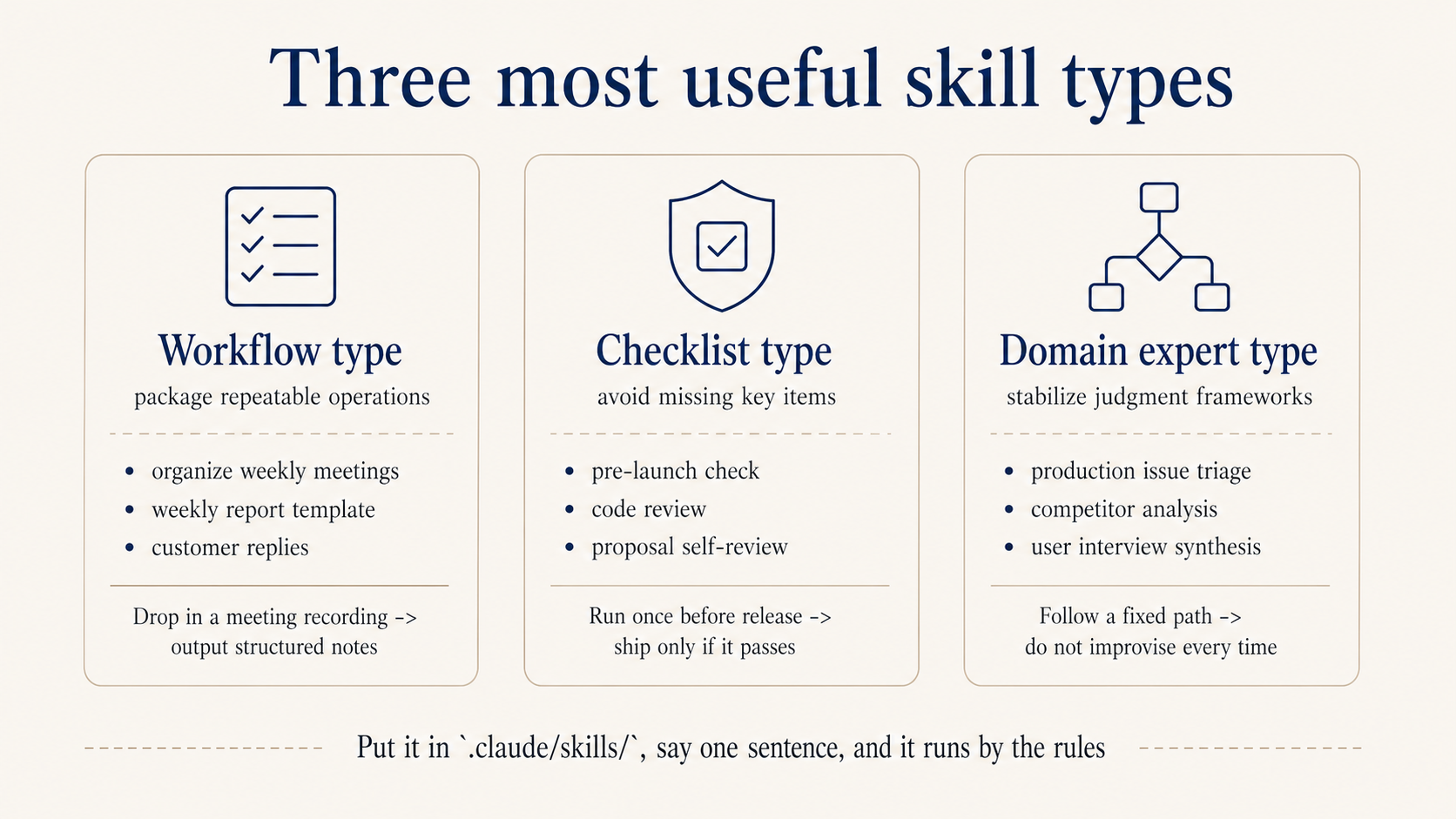
Type 1: workflow. Package a fixed sequence you do every time. For example, weekly meeting notes:
---
name: weekly-meeting-notes
description: Use when raw meeting notes need to be organized
---

## Output format
**Done this week**: [owner] finished what
**Next week**: [owner] does what, by when
**Open**: blocked on what, needs whose decision
**Action items**: [who] [does what] [by when]

## Rules
- Don't polish, keep the original phrasing
- Missing info gets marked "needs confirmation," don't guess
Type 2: checklist. Walk through it before launch, before release, before commit, to prevent omissions. For example, pre-launch:
---
name: launch-checklist
description: Run before shipping a feature, confirms nothing's missed
---

## Must all pass before shipping
- [ ] Each acceptance criterion in the PRD confirmed
- [ ] Design and implementation aligned: spacing, copy, interactions
- [ ] Edge states (empty, error, timeout) all handled
- [ ] Analytics events instrumented per spec
- [ ] Verified in staging

## Output
Each item Pass / Fail. Any Fail must be fixed before shipping.
Type 3: domain expert. Bake the judgment framework in, so for problems of this kind it walks a fixed path instead of improvising every time. For example, on-call incident triage, or any business SOP you have:
---
name: incident-triage
description: Use when an alert fires or a user reports something broken
---

## Collect
- Error screenshot or full error log
- Scope: which users, which page, when did it start
- Recent changes: code releases, config edits, data changes

## Diagnostic matrix
| Symptom        | Check first                      |
| -------------- | -------------------------------- |
| White screen   | JS errors → recent releases      |
| API timeout    | Service monitoring → slow query  |
| Bad data       | Recent data change → upstream    |

## Output format
Root cause / blast radius / fix steps / verification
Drop it in .claude/skills/, and when the matching scenario shows up, just say “use weekly-meeting-notes” or “use incident-triage.” You can also have Claude help you write these. Two pitfalls to avoid when writing Skills.
description is the trigger condition, not a feature pitch. “Use when raw meeting notes need to be organized” beats “Turn meeting recordings into structured weekly reports” by a wide margin in trigger accuracy.
One Skill, one job. Don’t bundle review, release, and debug into one. Splitting them gets you more accurate triggering.
Kami: let AI handle the typesetting
Writing the content is just the first half. Laying it out into something publishable usually takes longer. Kami is an AI typesetting tool I’ve been working on. Hand it your content, say “lay this out as a one-pager” or “make a portfolio,” and it produces a downloadable PDF.
It ships with eight templates: one-pager, portfolio, slides, resume, long doc, letter, research note, changelog. The visual style is consistent: warm parchment background, ink-blue accents, serif typography by default. No need to mess with fonts.
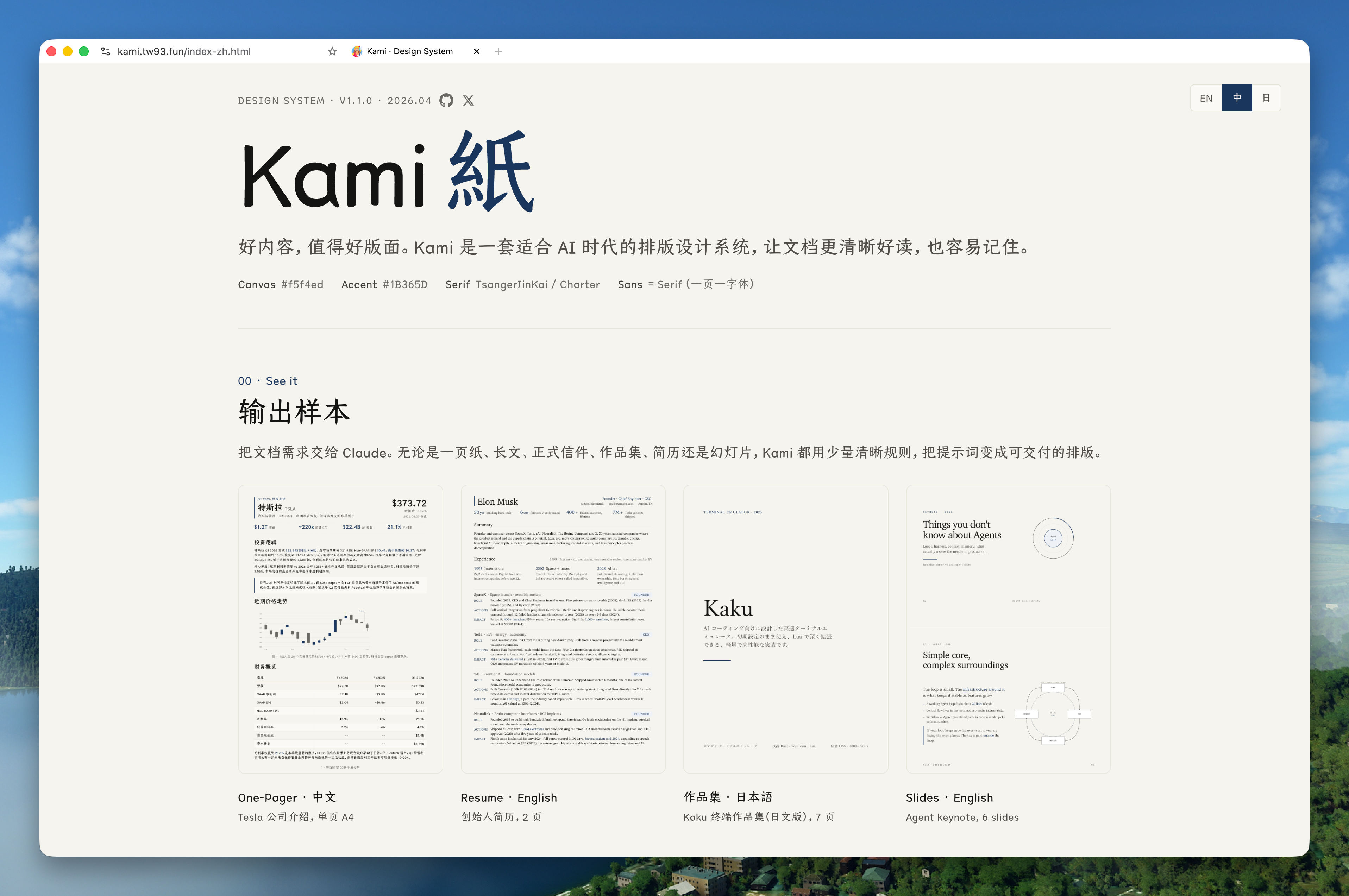
Most useful scenarios: meeting notes laid out as a brief, project status as a one-pager for your manager, your work history as a resume. Used to mean opening Word or Figma and fiddling for half a day. Now you drop the content in, get a first pass that’s already good enough to look at, then fine-tune.
Install: npx skills add tw93/Kami -g
Claude Design: prototypes without writing code
Claude Design, released by Anthropic in April 2026, is another path: upload a screenshot or document, and it gives you back an interactive prototype, slide deck, or landing page directly. Useful for non-technical folks who want to prototype quickly.
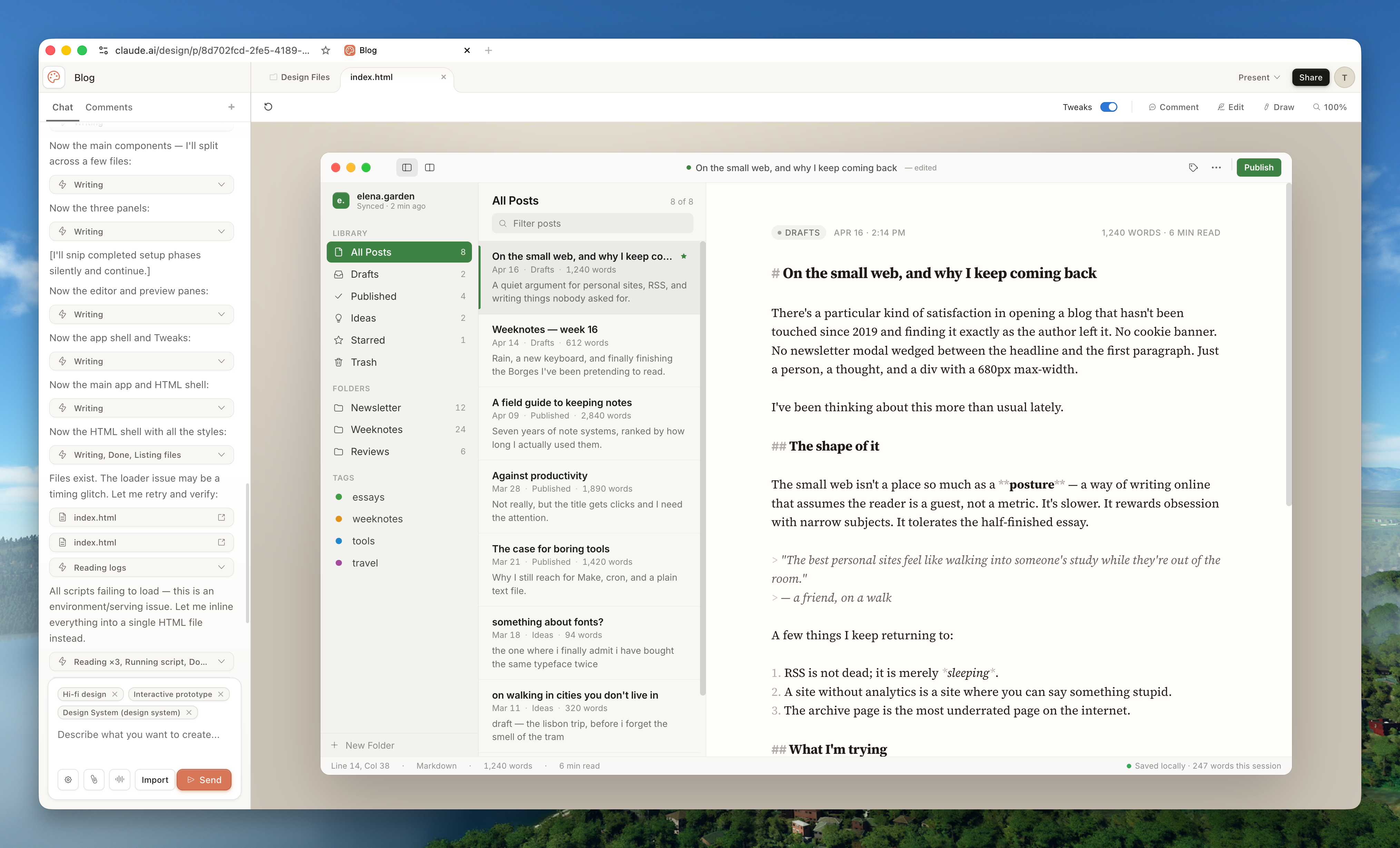
If you don’t want to touch code at all, use this to get something showable first. PMs can sketch a prototype, run a review, then hand the prototype to Claude Code to be turned into real code. Early prototypes don’t have to wait for full design and engineering capacity, you can have something to discuss the same day.
A few small habits once you’re comfortable
Screenshots are faster than text. To describe a UI issue or reference a design style, just drop the image. Layout, color, hierarchy all come along, less guessing required.
Break tasks small, one at a time. A task you can describe in one sentence almost always gets done correctly. Dump a giant pile of requirements and any one wrong step downstream sends everything off course. Finish and verify one thing before starting the next.
Restart when the conversation drifts. Trying to course-correct a session that’s already drifted just makes it drift more. Clear the context and re-state the requirement, often faster. Picking up the next day, glance at the Recap (the conversation summary auto-generated after /clear) to remember where you were.
Memory remembers your preferences across projects. CLAUDE.md is project-level, you write one per project. Memory is user-level, applies across all projects and all sessions. Just say “remember I want to see the plan first before execution” or “remember to reply to me in English.” It writes to ~/.claude/memory/ and applies on any project from then on. Background you keep restating belongs in here, save yourself the repetition.
Double-tap ESC to edit the previous message. If you misspoke or it drifted, hit ESC twice to jump back to the previous message and edit, no need to restart the session.
A few safety habits worth building from day one
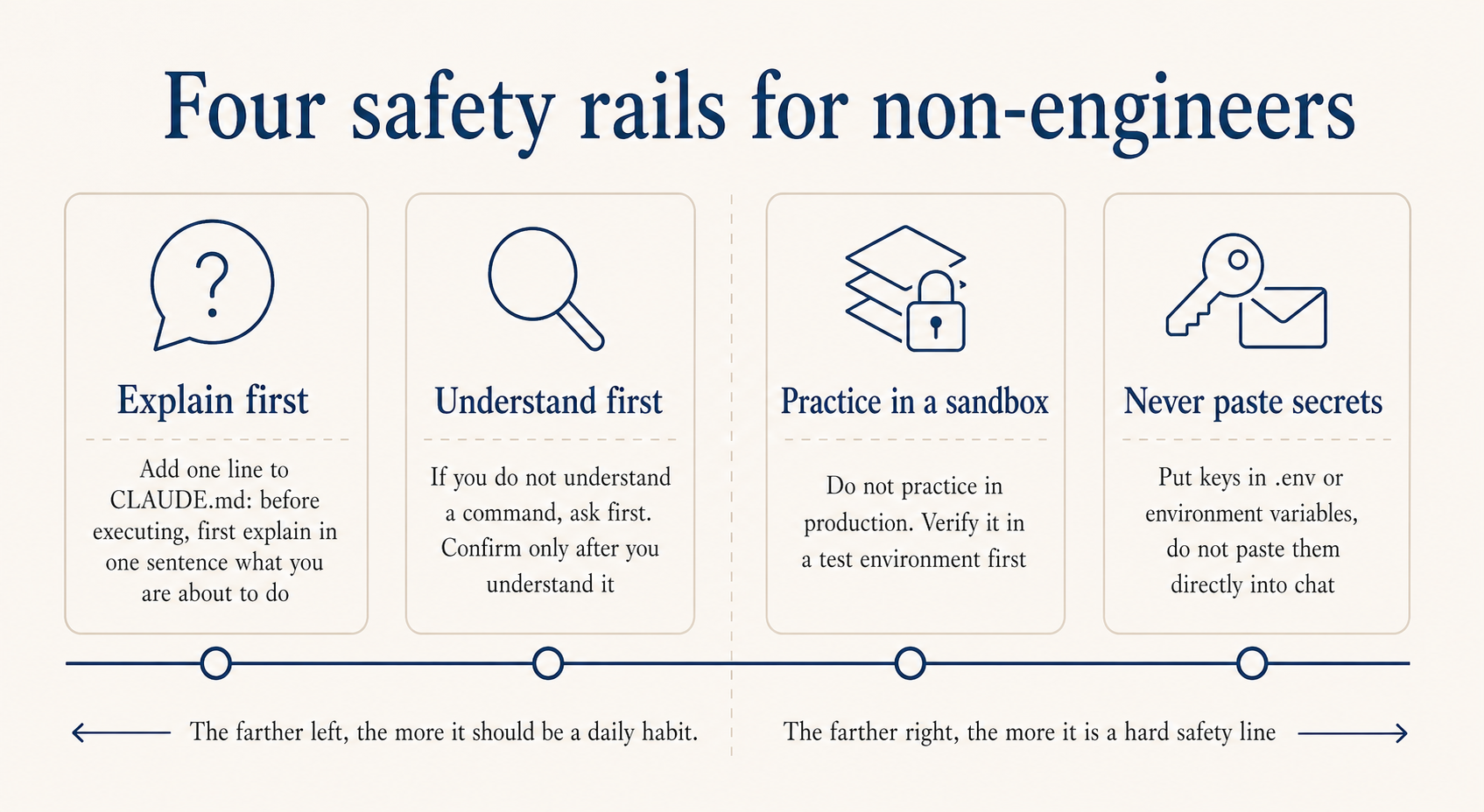
Have it explain before acting. Add this to CLAUDE.md: “Before running any Bash command or editing any file, explain in one sentence what you’re about to do.” It’ll narrate every step. Not being able to read code is fine, being able to read “I’m about to delete this file” is enough.
Ask about commands you don’t recognize. Don’t approve a command you’ve never seen. Ask “what does this command do, what’s the risk.” Understand it before approving. Don’t copy any command you don’t understand and run it; some of them can quietly download, upload, or leak information.
Don’t practice on production. Local and staging, mess around freely. For anything touching production database or live config, validate in staging first. The cost of one bad SQL or accidental delete is much higher than you’d predict.
Don’t paste secrets directly into chat. For API keys, database passwords, that kind of thing, have them go into environment variables or a .env file. Don’t drop plaintext credentials into the chat window.
One more that’s easy to overlook but really matters: passing tests doesn’t mean it’s safe. AI-generated code can have vulnerabilities. For login, payment, and personal information features, use Clerk or Stripe or similar mature services rather than letting it write from scratch.
Further reading
- You Don’t Know Claude Code: Architecture, Governance, and Engineering Practices
- You Don’t Know Agent: Principles, Architecture, and Engineering Practices
- You Don’t Know LLM Training: Principles, Paths, and New Practices
- Claude Code Best Practices - Anthropic Official
- vibe coding - Andrej Karpathy original tweet
- Claude Skills are awesome, maybe a bigger deal than MCP - Simon Willison
- Malleable software in the age of LLMs - Geoffrey Litt
- Claude Code Starter Pack: Tools, Tutorials & Resources - AI Edge
- When the Vibes Are Off: The Security Risks of AI-Generated Code - Lawfare